

This applies to new employees and returning employees if your staff account was expired.
Step 1: Open Incognito mode or a different browser.
Staff accounts must be used in a different browser, or incognito mode than Student/Alumni accounts.
Step 2: Go to the Self Service Password Reset.
Step 3: Enter your information.
Image
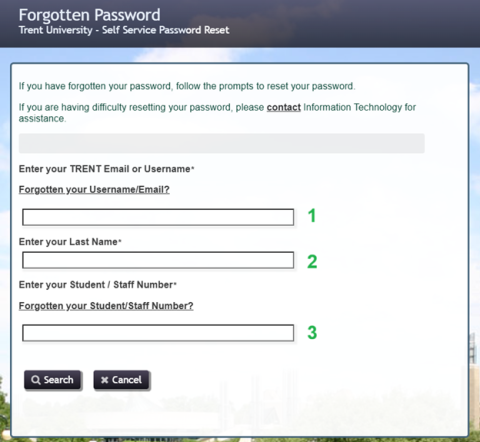
- Enter your staff email. For new employees this should be in your email from IT – for returning employees this is the same staff email you used before.
- Your last name as provided on your hiring forms.
- Enter your staff number. This number is in your original email from IT. For student staff it is your student number.
Step 5: Click Search.
On the next screen you can select which email to send the password reset to. You should have an option to send to your personal email. Student Staff should have the option to reset to their student email. Follow the instructions in the password reset email.
Step 6: Go back to the MyTrent portal login. Using your new STAFF account username and password, please log in to your account.
For assistance with resetting your password please contact the IT Service Desk at extension 1010 or email it@trentu.ca.
If you have any questions regarding payroll, please contact humanresources@trentu.ca.