
Information for Hiring Managers and Interview Committee Members
The Department of Human Resources is excited to announce the launch of our new recruitment module in VIP and external recruitment site. If you have any questions please email humanresources@trentu.ca.
Prior to initiating the recruitment process, all hiring managers and interview committee members are advised to review the Recruiting - Exempt and OPSEU Policy, OPSEU/Exempt Recruiting Guide, and the OPSEU Collective Agreement.
Hiring Managers:
What recruitment tasks will now be actioned in VIP and what tasks will continue to occur outside of VIP?
How do I submit a hiring request?
How do I review and approve a job posting?
Where can I view all of my active job competitions?
How do I review applications for a job competition?
How do I identify my shortlisted candidates?
How do I make a job offer?
Where can I view the history of all job offers I have made to candidates?
Interview Committee Members:
Where in VIP do I find the details for the job competitions I am on the Interview Committee for?
Hiring Managers:
What recruitment tasks will now be actioned in VIP and what tasks will continue to occur outside of VIP?
The following processes will occur in VIP by navigating to the Manager Portal > Workbench > Hiring.
- Submitting the Staffing Request Form (SRF) and hiring requisition
- Approving the draft job posting prior to posting
- Reviewing and assessing applications
- Approving and sending appointment letters
The following processes will continue to occur outside of VIP via email/phone. Please email Human Resources to initiate these steps.
- Interview questions and testing approval
- Advising HR of the interview committee
- Identifying shortlisted candidates
- Interview scheduling
- Reference checks
- Verbal offers
How do I submit a hiring request?
- Navigate to the Manager Portal > Workbench > Hiring.
- Under "Requisition Tools" select "Add a Request".

- Fill in the highlighted fields:
Approver - Madelyn Butcher (HR).
English Title - Job title for the posting.
Position - Use the "magnifying glass" to find the position you wish to fill.
Job - This will prepopulate once you select the position.
Expected Start Date - For requisitions being posted, this date should be at least one month from the date you are submitting the requisition.
Document - Upload the Staffing Request Form ensuring it has already been signed by either the Dean/Director/AVP/VP. Please note the file name cannot contain more than one ".".
Comments or Questions - For hiring requests not being posted (ie. contract extensions, temporary upgrades, etc.) please write "No Posting Required" in the comments. For hiring requests requiring posting, you can use this space to specify if you would like your job posted to any external advertising sites along with the GL account to charge and/or the duration you would like the posting open for if greater than the minimum 8 working days.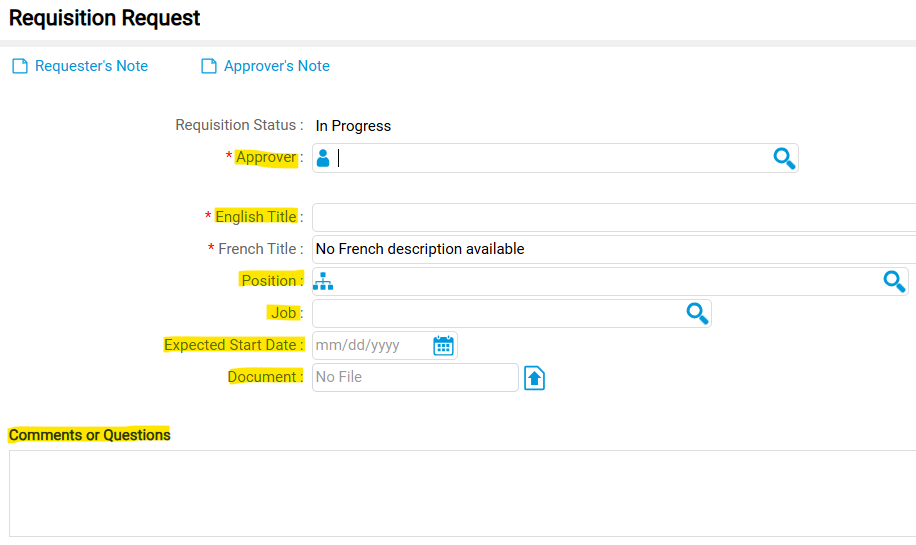
- Select 'Submit' then "Ok" to send the hiring request to Human Resources who will coordinate obtaining the remaining SRF signatures from the Budget Office and VP (where applicable). You will be able to see confirmation you submitted the request under "Manager Portal" > "Workbench" > "Hiring" >"Pending Requests" and marked as waiting for approval. If the hiring requisition does not appear immediately, please refresh your screen.
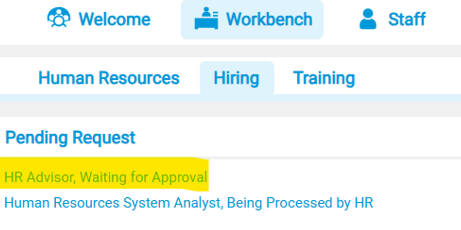
Alternatively, you can select 'Save' if you are not ready for the request to be sent. The request will be saved in your pending requests and marked as 'in progress' until you are ready to submit. - The hiring request will be reviewed by HR and you will be notified when the job posting is ready for your review (or the appointment letter if a job posting is not required).
How do I review and approve a job posting?
Once the SRF has been approved, Human Resources will finalize the posting details. You will then have a chance to review and approve the posting prior to it going live, by following these steps:
- You will receive an email notifying you the draft posting is ready for your approval.
- Navigate to the Manager Portal > Workbench > Hiring. Scroll down to “Requisitions Posting Approval” and select the job posting you wish to review.
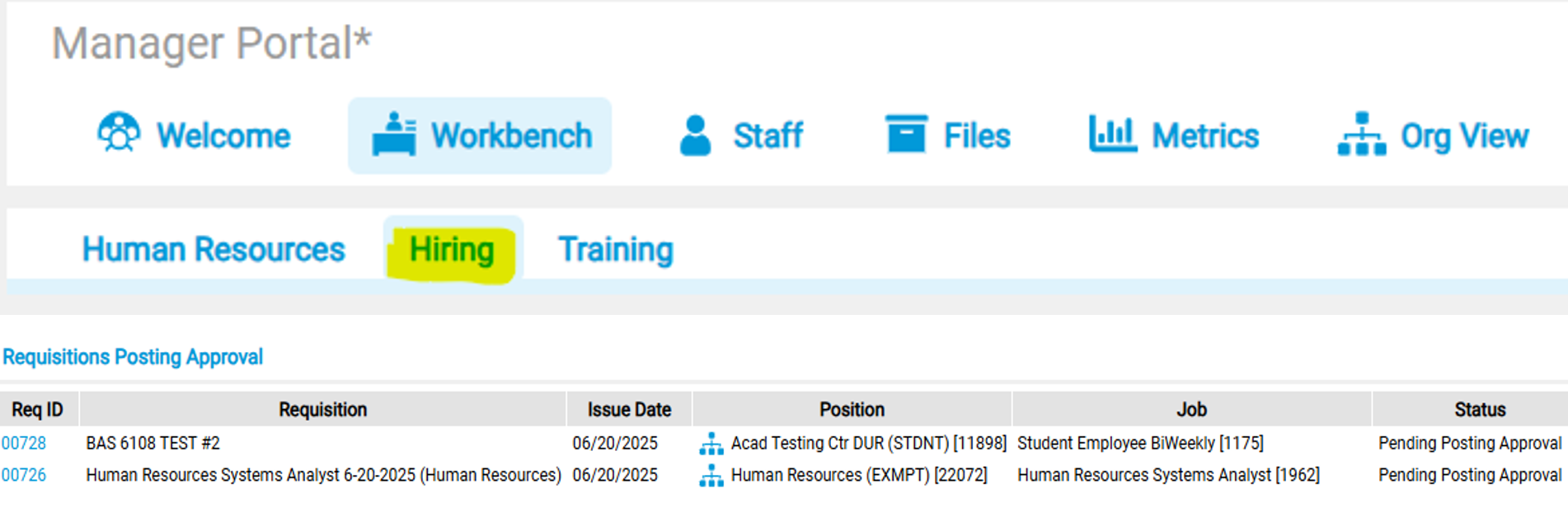
- You will notice both an internal posting and external posting, you only need to review the internal posting details as that information is automatically duplicated for the external posting. Ensure the following details are accurate: job title, status, closing date, salary range, etc..
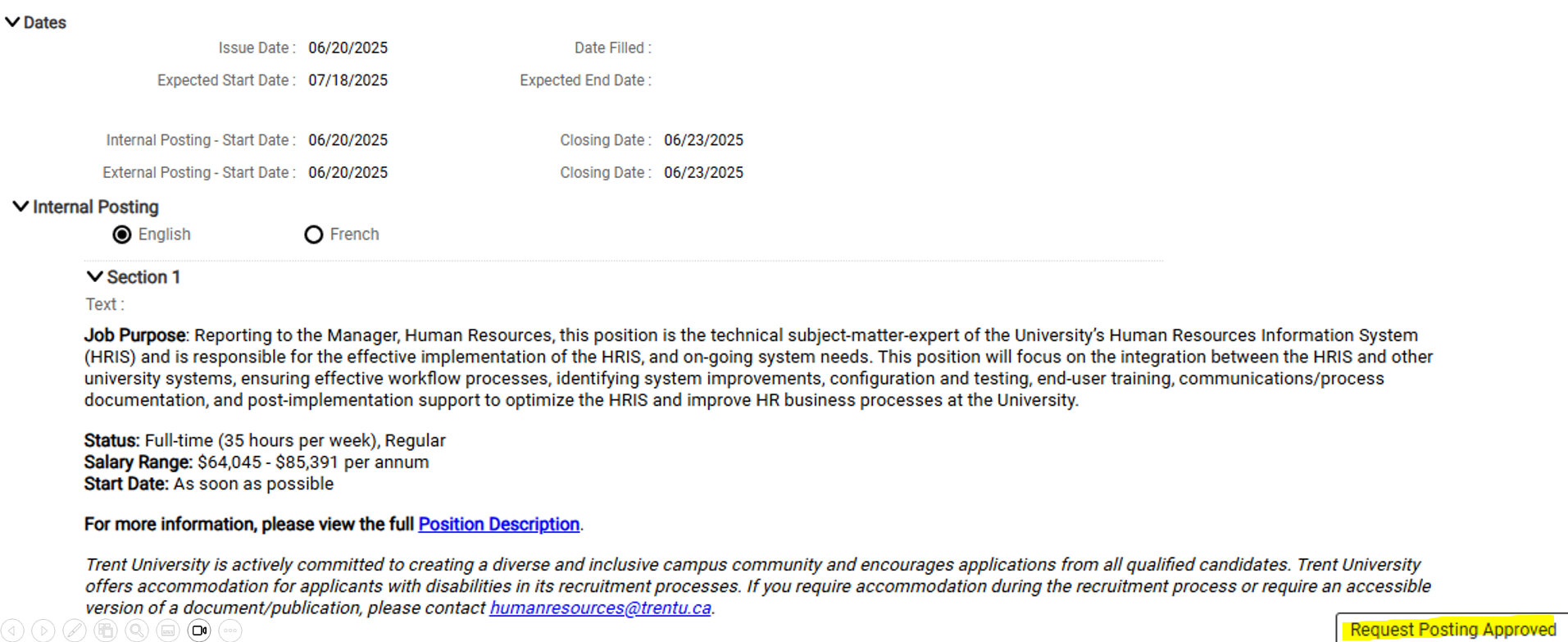
- Select "Request Posting Approved" and Human Resources will proceed with posting the position to the Internal Job Board and External Recruitment Site. If changes to the posting are required, please email Human Resources and do not select "Request Posting Refused".
- You will find confirmation you have approved the posting as the requisition will no longer appear under "Requisitions Posting Approval" and will be found under "Pending Requests" where the job will be marked as "Being Processed by HR" until the job posting goes live. If the requisition does not update immediately, please refresh your screen.

Where can I view all of my active job competitions?
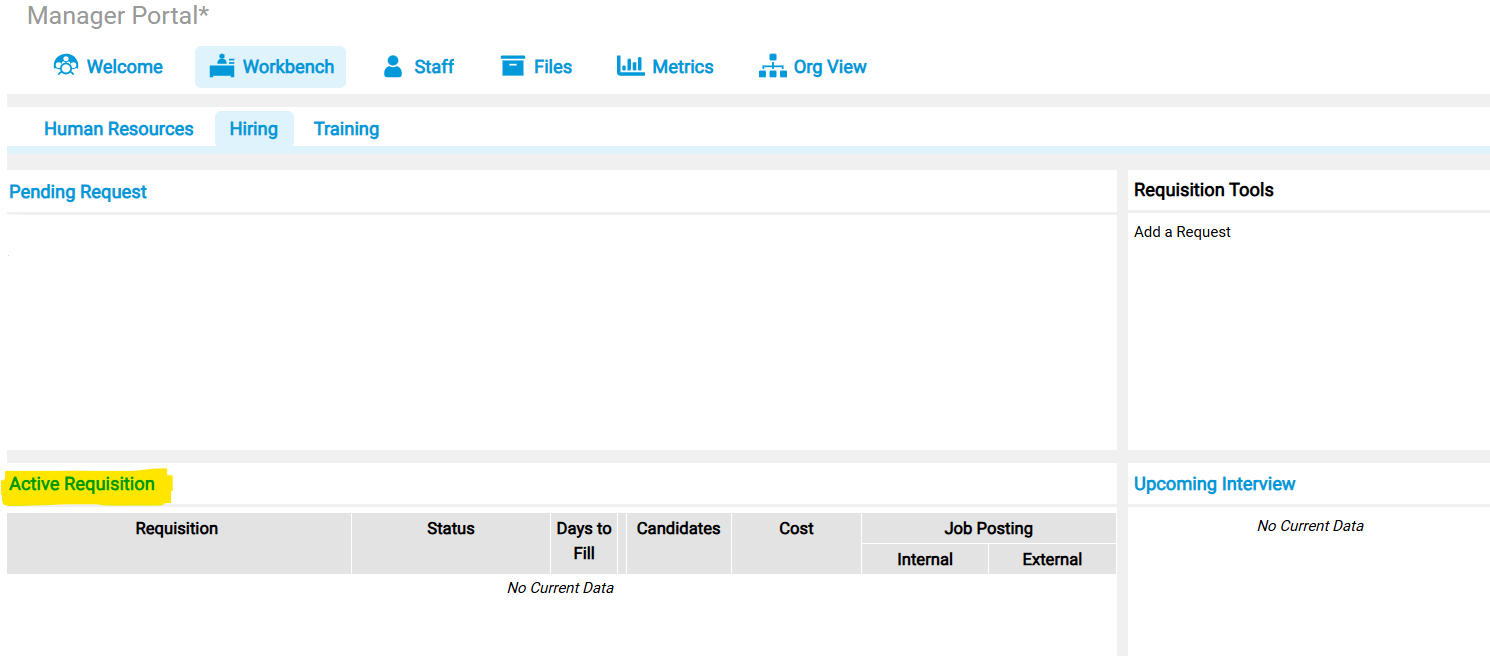
Navigate to the Manager Portal > Workbench > Hiring and scroll down to the "Active Requisitions" where you can view all of your active job competitions that are posted and accepting applications.
How do I review applications for a job competition?
Applications will be released to the hiring manager and interview committee the day after your job competition closes, providing we have received your interview questions/testing and interview committee details.
To review applications, follow these steps:
- Navigate to the Manager Portal > Workbench > Hiring.
- Under "Active Requisitions" locate the requisition you wish to review applications for and select the hyperlinked number under "Candidates".
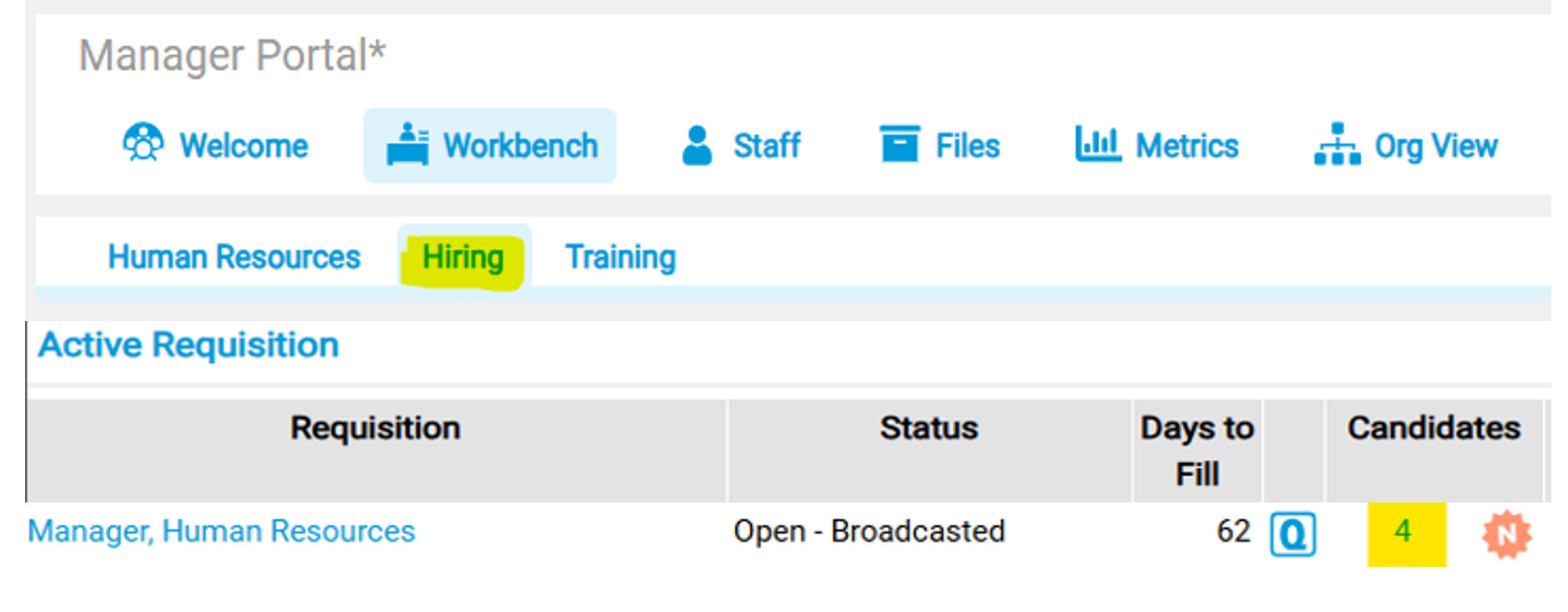
- You can select the blue "Q" icon to view a candidate's answers to the mandatory questionnaire.
- The "Fit Percentage" is calculated based on the questionnaire answers. A low score will alert you that you need to look into their questionnaire answers prior to proceeding, but it does not mean that the candidate is underqualified and that you cannot proceed with their application.
- Under "Role" candidates will be marked as an "Employee" or "Applicant". Please note that anyone applying through the Internal Job Board will be automatically labelled as an "Employee". This includes non-Trent employees such as individuals in unpaid appointments who have access to VIP.
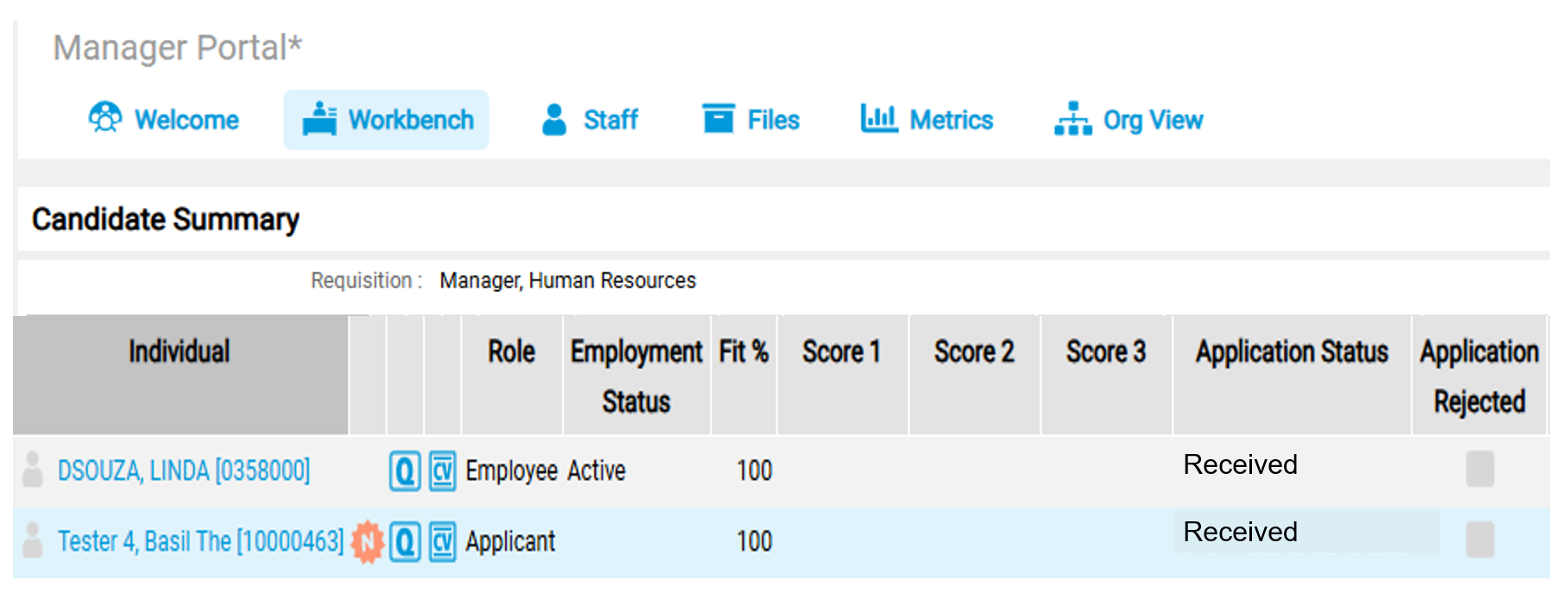
- Under "Application Status" candidates will be marked as one of the following categories:
Received by HR - this is the generic label used for all Exempt job competitions or for external candidates applying to job OPSEU competitions.
*OPSEU - Reg/Rec - the applicant is a current OPSEU member holding a regular or recurring position.
*OPSEU - Dept Contract - the applicant is a current contract OPSEU member within the hiring department.
*OPSEU - Career Dev - the applicant is a current OPSEU member applying through the Career Development program.
* These labels are only applicable to OPSEU job competitions. - Select the blue "CV" icon to view and download an applicant's resume and cover letter.
How do I identify my shortlisted candidates?
Once you have reviewed the applications, email humanresources@trentu.ca with the names of your shortlisted candidates. At this time you can also request Human Resources to support with scheduling the interviews.
How do I make a job offer?
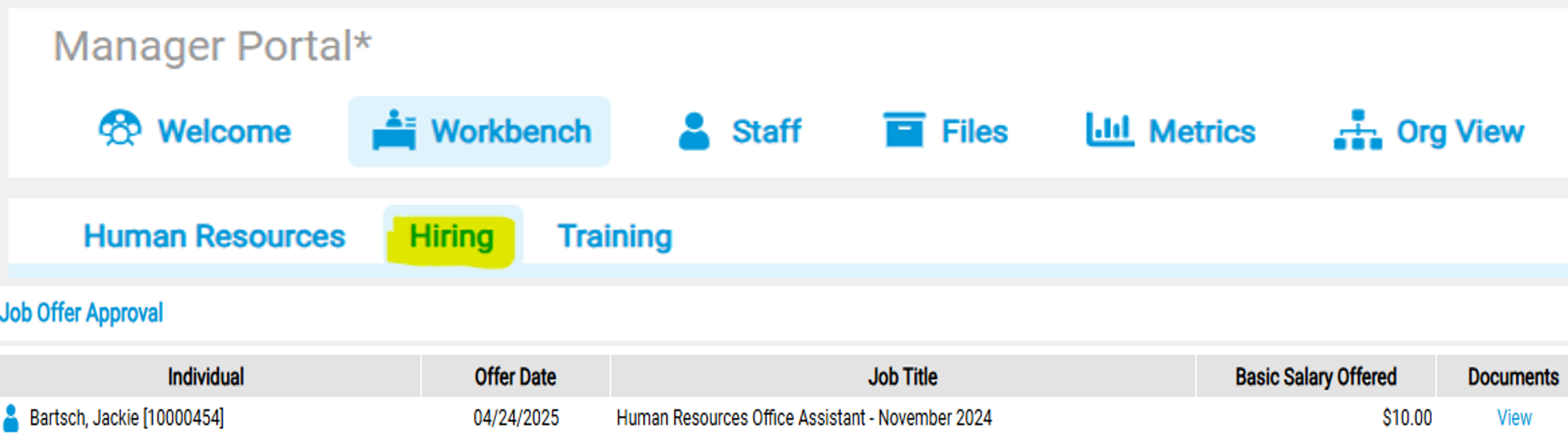
Verbal offers will continue to be done outside of VIP, consult with Human Resources on the salary. If the candidate accepts the verbal offer, ask Human Resources to draft the appointment letter. Hiring managers will approve the appointment letter within VIP prior to it being sent to the candidate. Follow these steps to approve an appointment letter:
- You will receive an automatic email notifying you a job offer is ready for your approval.
- Navigate to the Manager Portal > Workbench > Hiring.
- Scroll down to "Job Offer Approval" and select the job offer you wish to review.
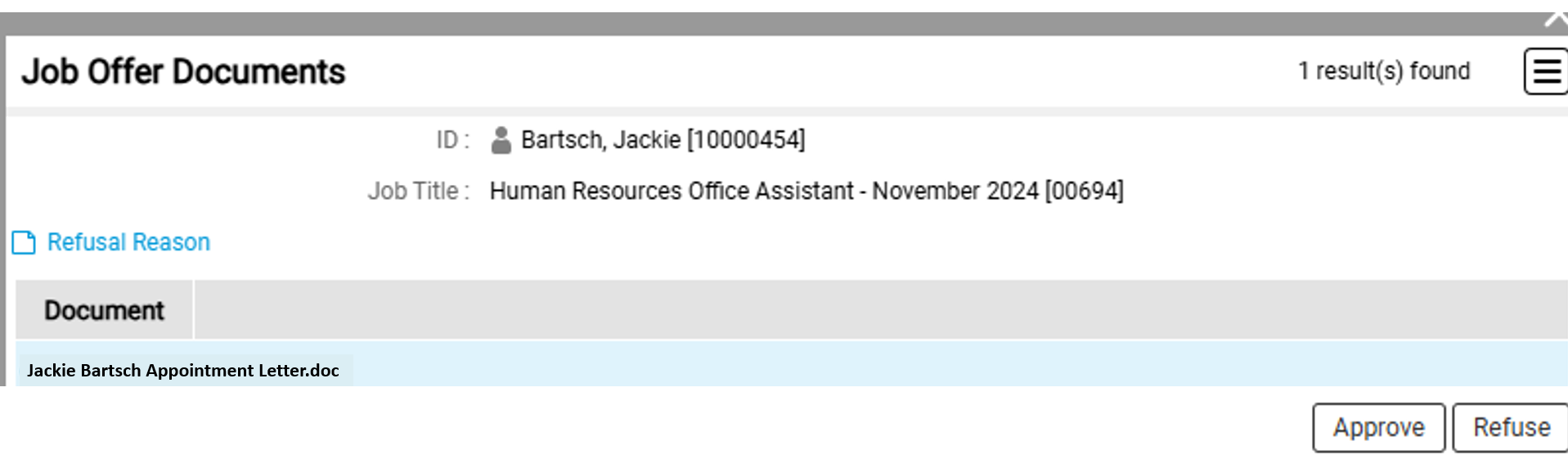
- Select "View" and review the offer for accuracy.
- Select "Approve" then "Ok" and the candidate will receive an email with the offer letter attached. Or, if the appointment letter needs to be revised, you can enter the "Refusal Reason" and then select "Refuse" and Human Resources will revise and resend with the required edits.
Where can I view the history of all job offers I have made to candidates?
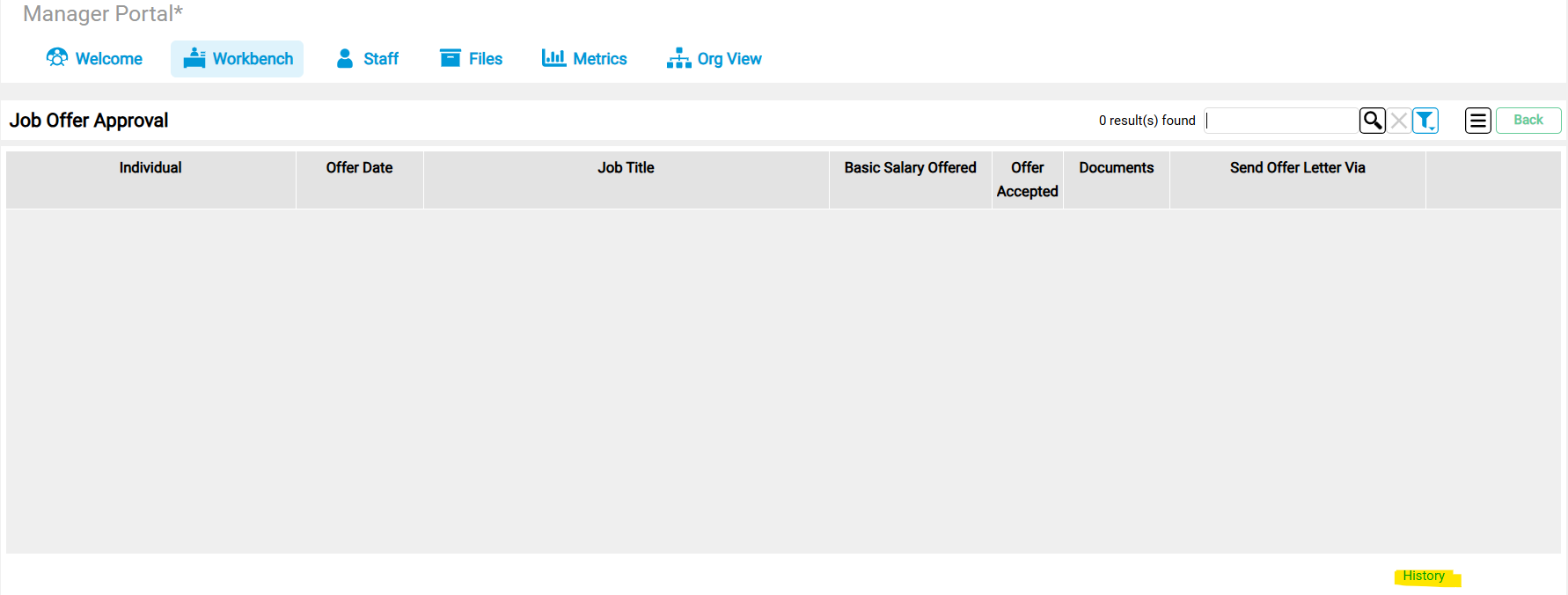
- Navigate to the Manager Portal > Workbench > Hiring.
- Select "Job Offer Approval".
- In the bottom-right corner of the screen, select "History".
Interview Committee Members:
Where in VIP do I find the details for the job competitions I am on the Interview Committee for?
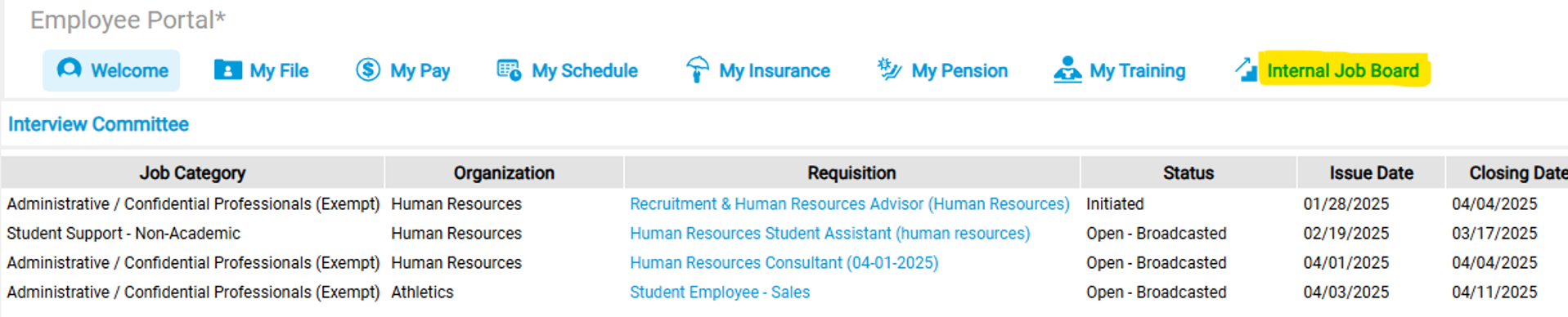
- Navigate to the Employee Portal in VIP.
- Select the Internal Job Board and scroll down to “Interview Committee”.
- Once the job competition has closed and the applications have been released by Human Resources, you can select the requisition to view applications.
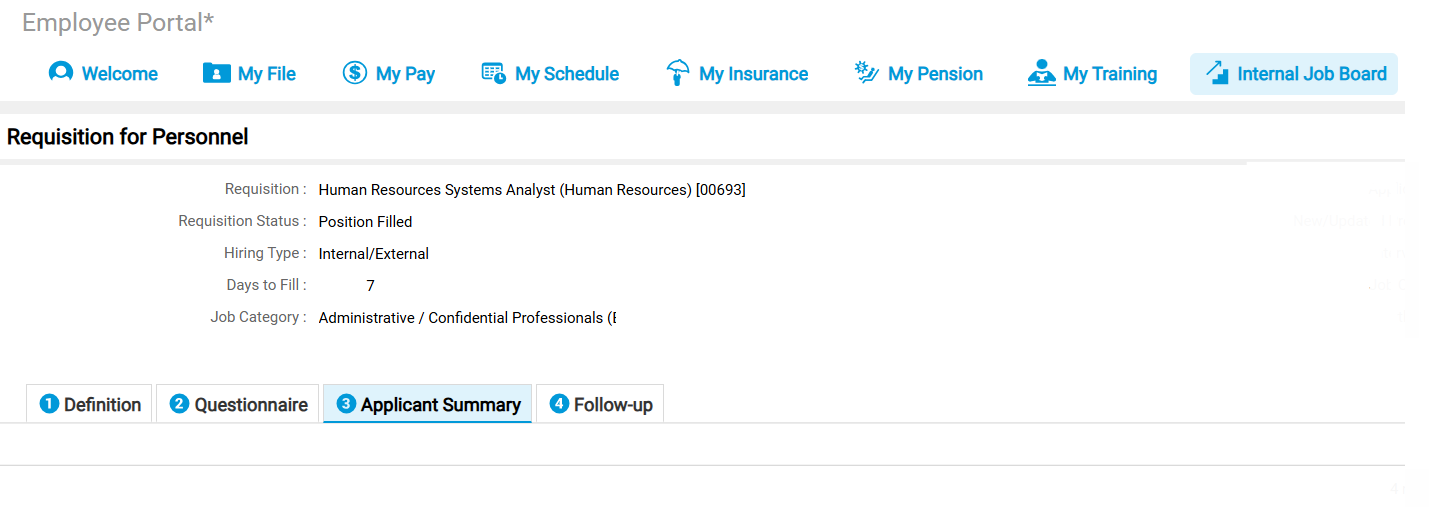
- Select “3 Applicant Summary” and scroll up to see the list of candidates and review their applications. A detailed breakdown on information found in the Applicant Summary Screen can be found here.