

Note - the deadline to submit timesheets in VIP is every Monday at Noon for the previous week
This page outlines the steps to for an employee to submit their timesheet electronically through VIP. Note - salaried employees who are on a schedule or stipend are automatically paid and are not required to submit hours worked in VIP.
--> View the Employee VIP Quick Reference Guide
--> Jump to Special notes and error messages
Please choose how you will be accessing VIP:
Submitting Electronic Timesheet in VIP using the Desktop site:
Step 1: Access VIP, through the MyTrent Portal using your STAFF login credentials. If you require more information on how to access MyTrent and VIP and obtain your STAFF login, please check out the instruction document called “How to Access VIP and View Your Paystub”.

Step 2: Once you are in VIP, navigate to the employee portal, then click on “My Pay”.

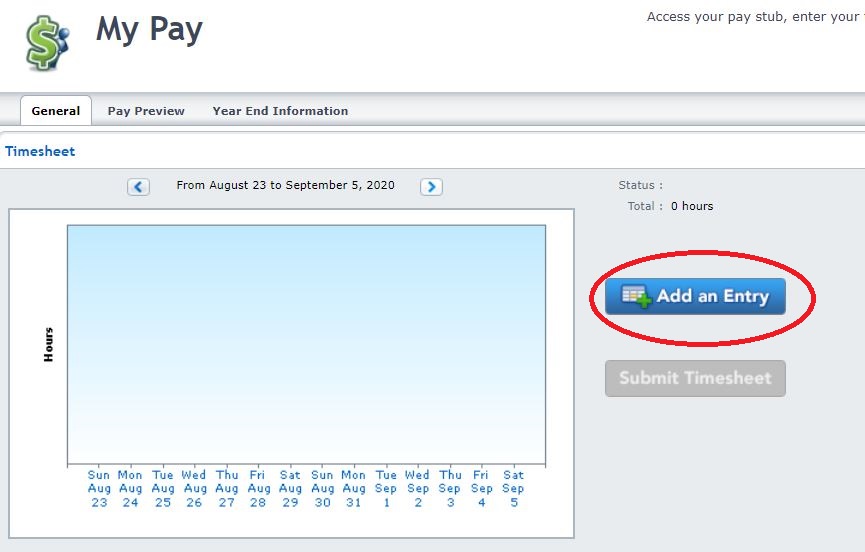
Step 3: Under the Timesheet, click on "Add an Entry".
Step 4: Fill out the timesheet details:
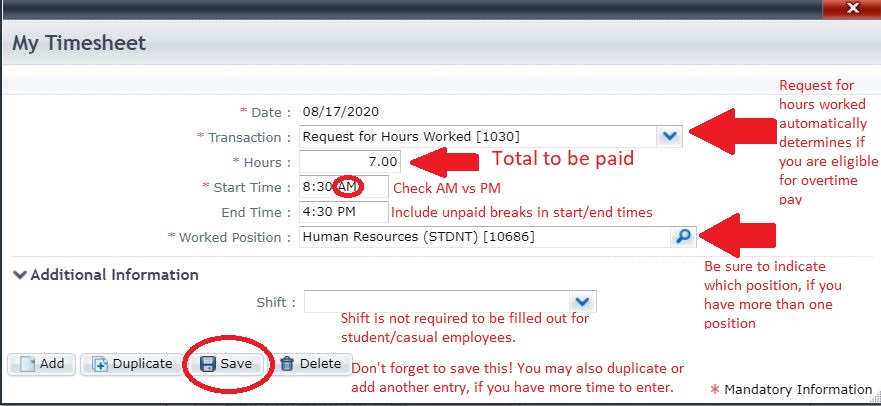
Transaction Code:
Request for Hours Worked [1030]: is used for Students, Research, Other, OPSEU and Exempt to submit hours to be paid and will automatically determine if the employee is eligible for overtime.
View the list of other eligible transaction codes for OPSEU employees or Exempt employees.
Hours:
Enter the total number of hours to be paid.
Do not include unpaid breaks.
Enter at straight time and do not multiply this number to account for overtime/lieu time or stat pay. The system will automatically calculate this.
Note - you can only enter in 15 (.25) minute intervals. 15 minutes = .25, 30 minutes = .50, 45 minutes = .75. For example, if you worked 1 hour 45 minutes, you would enter 1.75 hours.
Start Time: Enter the start time of work that day, making sure to include the proper AM or PM
End Time: Enter the end time of work that day, making sure to include all your unpaid breaks, and the proper AM or PM. If you do not enter in the end time, VIP will add the total number of hours indicated to the start time.
Worked Position: If you have more than one position, pay careful attention that you select the correct position worked.
Shift: This section can be left blank for student/casual/research employees. For OPSEU/Exempt employees, by selecting "Evening", the shift differential of $0.65 will be applied to the entire shift hours.
Click SAVE once you are finished.
Repeat steps to add all hours worked for each day of the week. Note - entering the hours does not submit your timesheet to payroll (see below to submit).
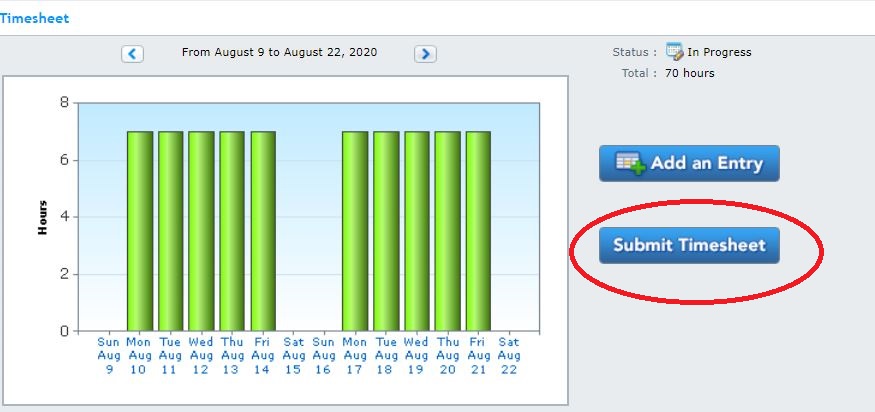
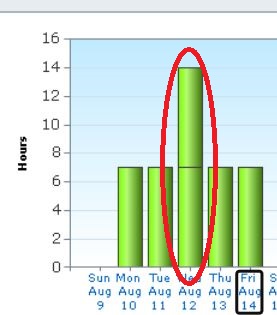
Step 5: Review your timesheet submission by looking at the Green Bar Chart under the timesheet. Make special note that you are looking at the correct pay period at the top.
At the end of each week, if the timesheet is entered correctly, you may click on "Submit Timesheet", which will send it to your supervisor and payroll for processing.
Note - the deadline to submit timesheets is every Monday at Noon for the previous week.
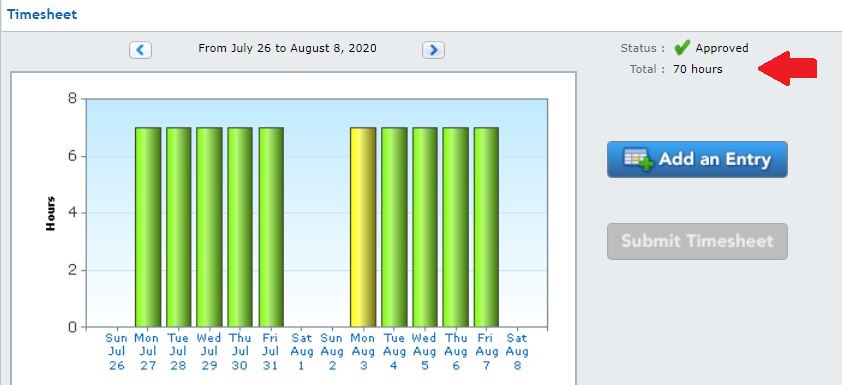
Step 6: Once it has been submitted, you will no longer be able to submit again and will see the status changed to approved.
Step 7: When you are finished with VIP, please be sure to log out.
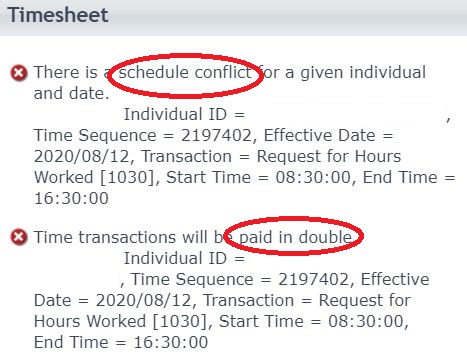
Special Notes and Potential Error Messages:
- Timesheets are due every Monday by Noon for the previous week.
- Payroll is run every 2 weeks.
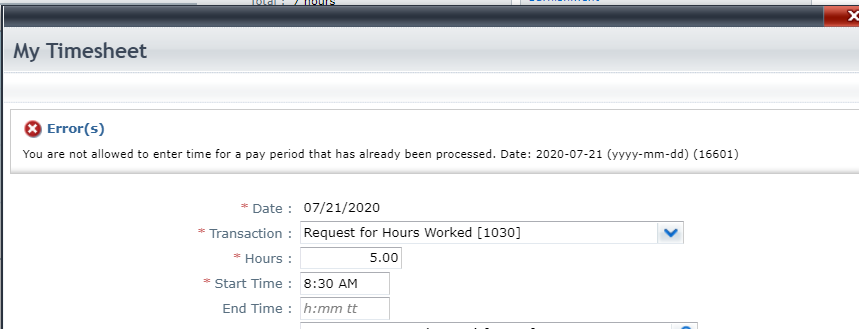
- You are not allowed to enter time in VIP for a pay period that has already been processed by payroll.
- Please ensure all hours are submitted at the end of each week.
- If you try to submit hours for a previous pay period, you will get this error:
Submitting Electronic Timesheet in VIP using the Mobile Site:
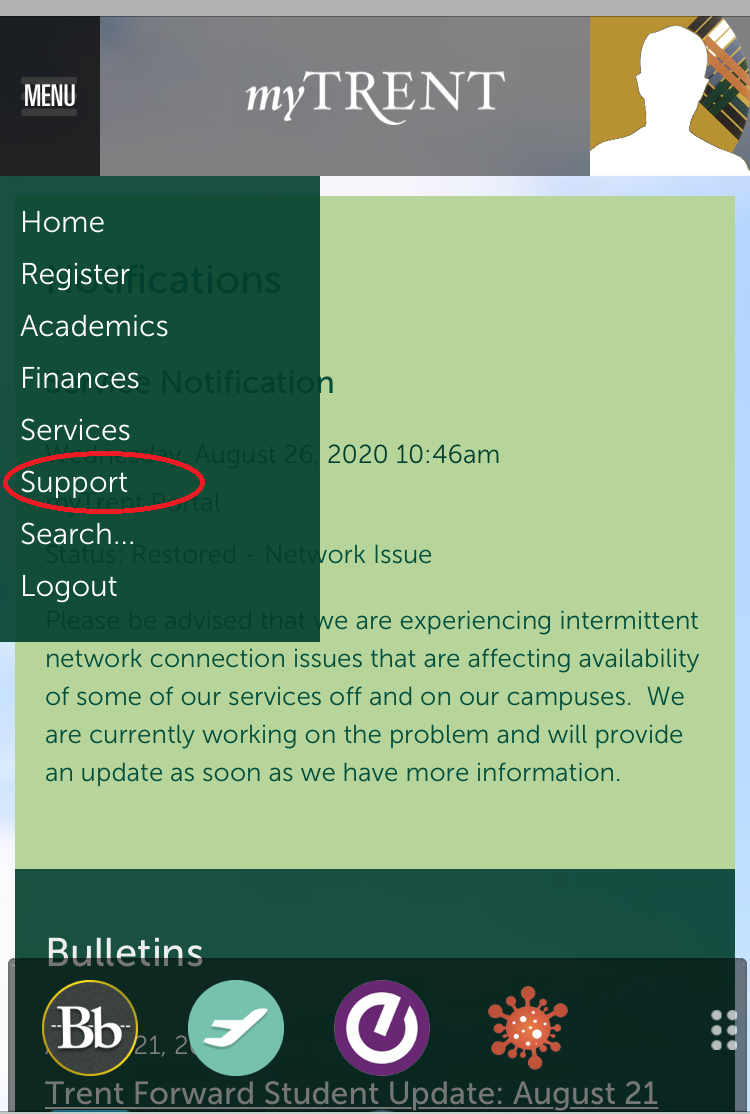
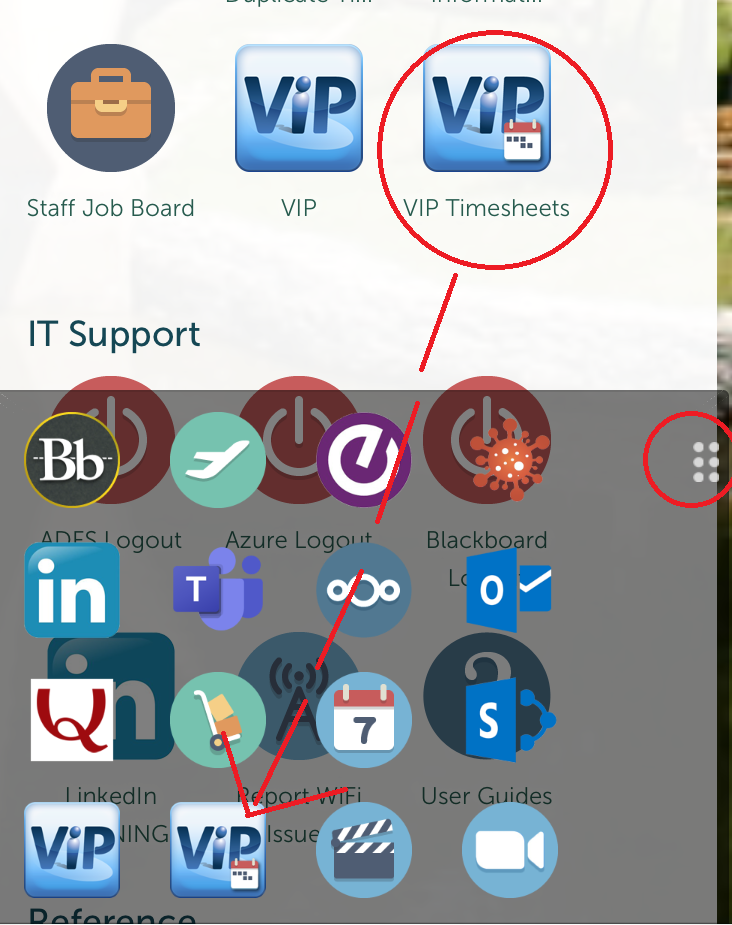
Step 1: Using your mobile device, access the "VIP Timesheets" Icon  by going to the MyTrent Portal using your STAFF login credentials. Click on the Menu, and go to "Support". Scroll down until you see the Human Resources / Payroll section and see the "VIP Timesheets" Icon. You may wish to drag the icon to your shortcut bar, for faster access in the future.
Note - The mobile friendly timesheet can only be accessed using the "VIP Timesheets" icon with the small red calendar. If you click on the regular VIP site icon, your view may not be as user friendly when using a mobile device.
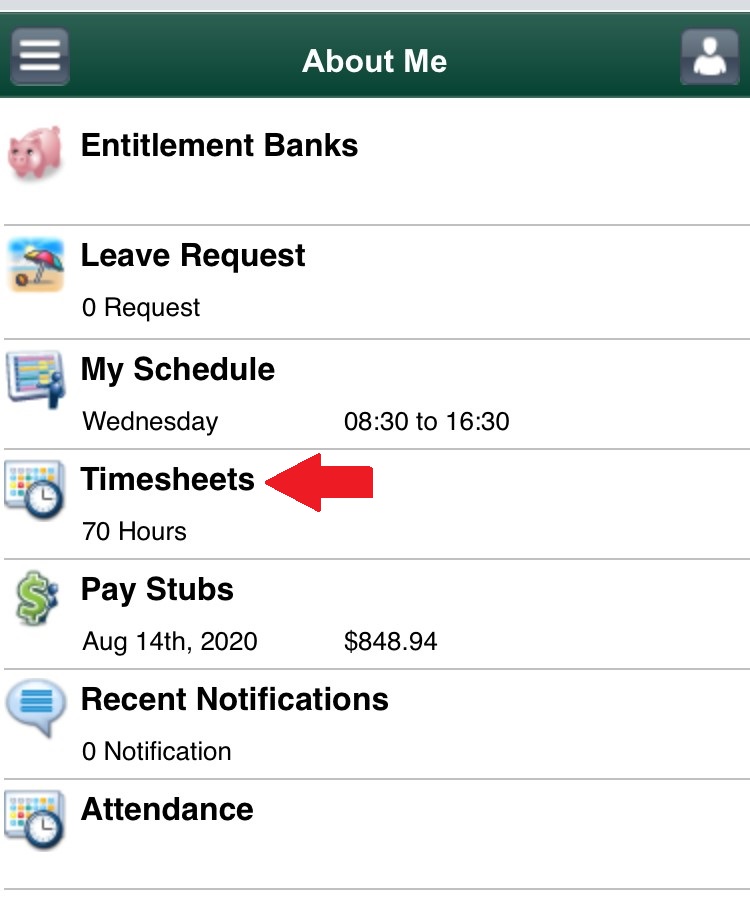
Step 2: Click on "Timesheets".
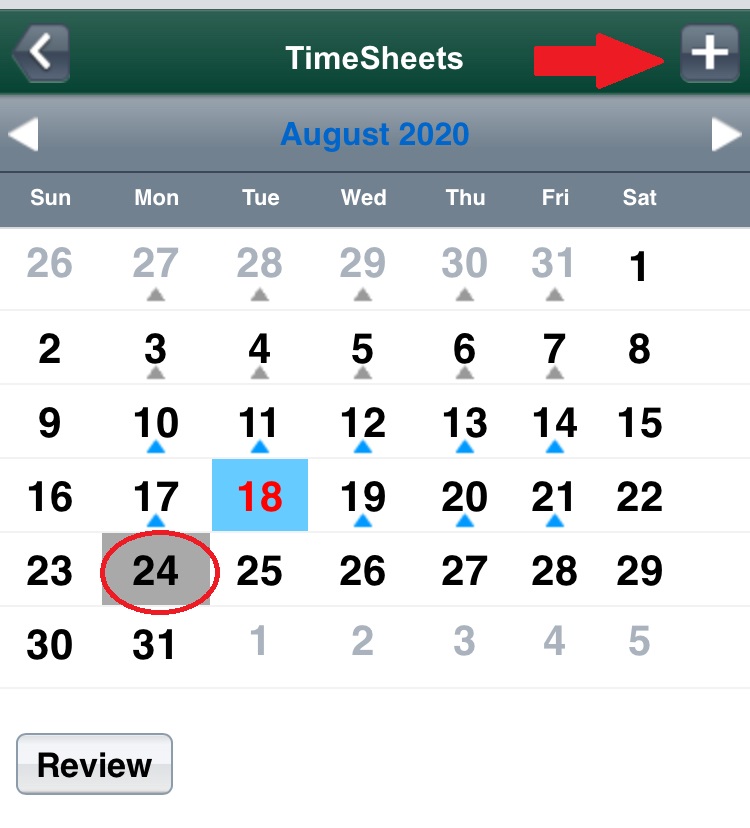
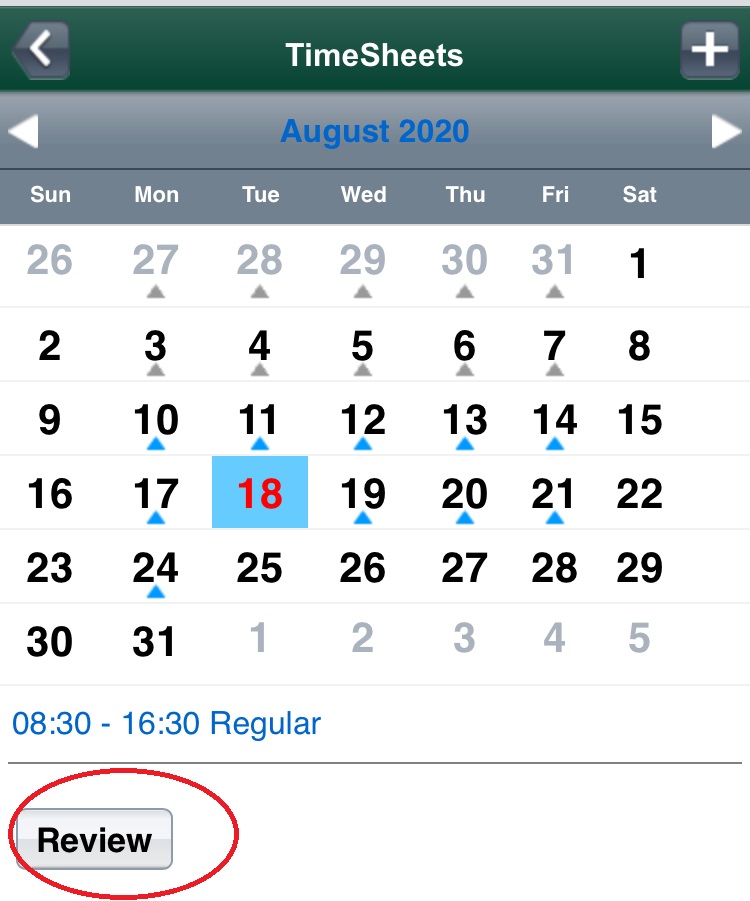
Step 3: Select the date you want to add your time to, then click on the plus + button on the top right corner. Note - the blue triangle indicates days that have hours entered already.
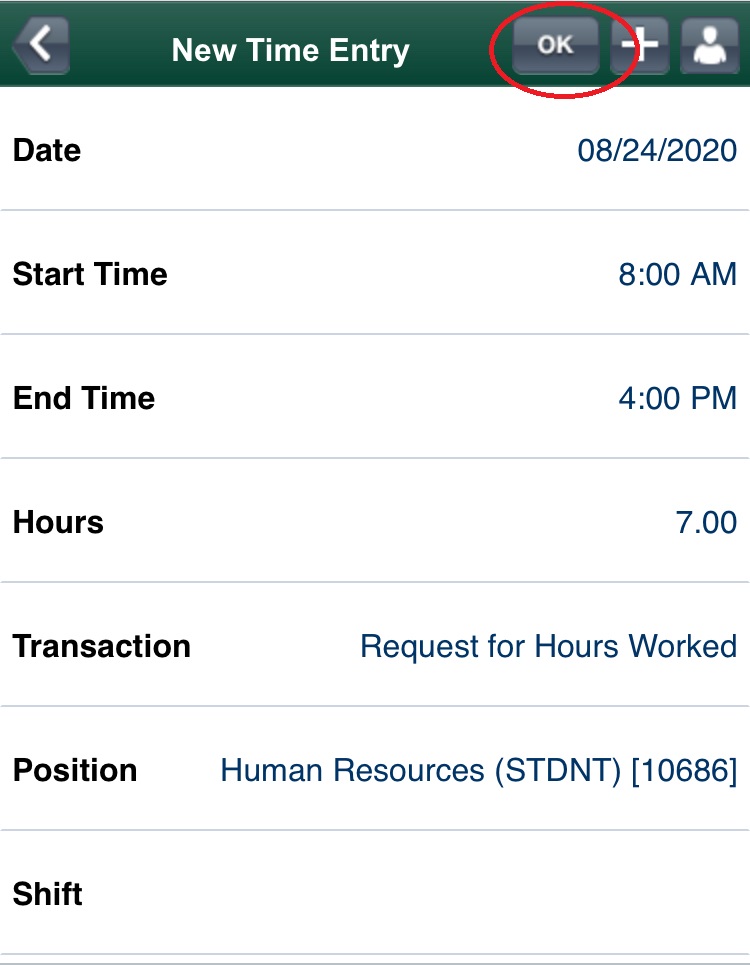
Step 4: Fill out the timesheet details:
Date: Pre-selected based on the date chosen in the previous step.
Start Time: Enter the start time of work that day, making sure to include the proper AM or PM. Note - 00:00 = 12:00.
End Time: Enter the end time of work that day, making sure to include all your unpaid breaks and include the proper AM or PM. Note - 00:00 = 12:00.
Hours: Enter the total number of hours to be paid.
Note - Do not include unpaid breaks. Enter at straight time and do not multiply this number to account for overtime/lieu time.
Note - you can only enter in 15 (.25) minute intervals. 15 minutes = .25, 30 minutes = .50, 45 minutes = .75. For example, if you worked 1 hour 45 minutes, you would enter 1.75 hours.
Transaction:
Request for Hours Worked [1030]: is used for Students, Research, Other, OPSEU and Exempt to submit hours to be paid and will automatically determine if the employee is eligible for overtime.
View the list of other eligible transaction codes for OPSEU employees or Exempt employees.
Position: If you have more than one position, pay careful attention that you select the correct position worked.
Shift: This section can be left blank for student/casual/research employees. For OPSEU/Exempt employees, by selecting "Evening", the shift differential of $0.65 will be applied to the entire shift hours.
Verify the entry looks accurate, then click OK at the top of the screen to save this timesheet entry. Note - this does NOT submit your timesheet to payroll.
Step 5: Once you have entered all your time for the week, click on "Review"
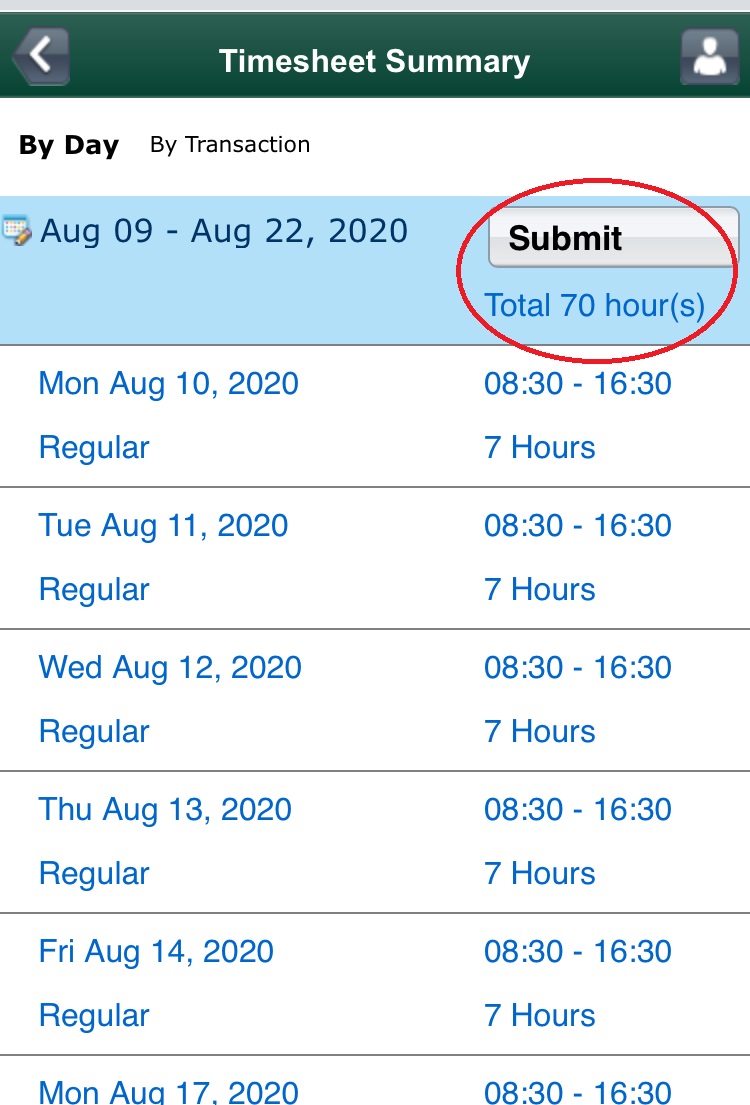
Step 6: At the end of each week, once you have reviewed all the time is accurate for this week, click on "Submit". This will submit the hours to your supervisor and payroll for processing. Note - the deadline to submit timesheets is every Monday at Noon for the previous week.
Step 7: When you are finished with VIP, please be sure to log out.
If you have any further questions, please contact Trent University’s Payroll Department at payroll@trentu.ca.