

Information for External Applicants
(Non-Trent Employees)
The Department of Human Resources is excited to announce the launch of our new recruitment site. If you have any questions or feedback, please email humanresources@trentu.ca.
Where do I apply to jobs?
Where can I view and apply to current job postings?
What is VIP and how do I know if I have access to it?
I currently work at Trent as a student employee / contract employee / unpaid appointment. What platform should I use to apply for a job?
Can I apply through the External Recruitment Site even if I have access to the Internal Job Board in VIP?
How do I apply to jobs?
How do I create an applicant profile?
Can I save a resume and cover letter to my applicant profile?
How do I apply to a job posting?
Can I make changes to my application after it has been submitted?
How do I know if my application has been received?
What are job alerts and how can I sign up for them?
Can I withdraw my application?
How do I accept a job offer?
How do I accept a job offer?
Where do I apply to jobs?
Where can I view and apply to current job postings?
External applicants who do not have access to VIP (Trent University's Human Resources Information System) must apply through the External Recruitment Site. Those with VIP access will apply through the Internal Job Board in VIP.
How do I know if I have access to VIP?
VIP is Trent University's Human Resources Information System. To check to see if you have access to VIP, login to your myTrent account, select "Support" and scroll to the "Human Resources/Payroll" section. If you have VIP access you will see this icon:

I currently work at Trent as a student employee / contract employee / unpaid appointment. What platform should I use to apply for a job?
If you have access to VIP you must apply through the Internal Job Board within VIP. If you do not have access to VIP please apply through the External Recruitment Site.
Can I apply through the External Recruitment Site even if I have access to the Internal Job Board in VIP?
No, all employees and individuals with access to VIP must apply through the Internal Job Board for their application to be considered. This ensures seniority and/or internal status are considered for unionized job competitions, in accordance with applicable collective agreements.
How do I apply to jobs?
How do I create an applicant profile?
- Navigate to the External Recruitment Site.
- Select "Create or Update my Profile".
- Enter and save details such as your job history, education, and certifications.
The information you save to your applicant profile will prepopulate when you apply to future vacancies where this information is requested. Please note, all information that can be saved to the applicant profile may not be requested by the hiring manager for a particular vacancy.
Can I save a resume and cover letter to my applicant profile?
No, you are required to upload your resume and cover letter in Word or PDF format for each job you apply to.
How do I apply to a job posting?
- Login to the External Recruitment Site.
- Use the advanced search function to narrow down the jobs being displayed to you based on your interests.
Image
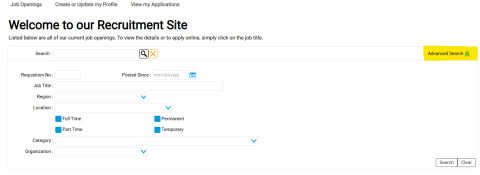
- Click on the job title of the job posting to see additional details.
- Select "Position Description" to review the full job description.
- Select "Apply".
Image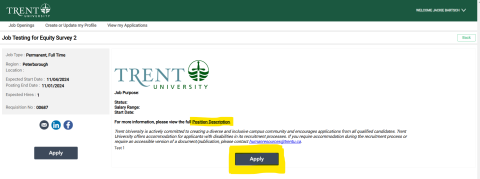
- Answer the required fields and attach your resume and cover letter in either Microsoft Word or PDF format. Some fields may be pre-populated based on the information you originally saved in your applicant profile. Ensure you review this information and update as needed.
- Select "Submit" application.
Can I make changes to my application after it has been submitted?
Yes, you can make changes to your application after it has been submitted as long as the job posting is still open. Once the job posting has closed you are unable to update or change your application. To make changes:
- Navigate to the External Recruitment Site.
- Under "View My Applications" select the requisition number for the application you wish to update.
- Select "Update My Application".
- Make the desired changes and select "Submit".
How do I know if my application has been received?
After submitting your application, you will receive an automatic email confirming that your application has been received (be sure to check your junk mail folder if you don’t receive this). You can also select “View my Applications” to view the history of all applications you have submitted.
What are job alerts and how can I sign up for them?
Job alerts are automatic emails that you can elect to opt into. These emails are sent to you when new jobs are posted that match the criteria you have selected. You can set up job alerts when creating your applicant profile, or afterwards by following these steps:
- Navigate to the External Recruitment Site.
- Login and select "Create or Update my Profile".
- Select "Step 2 Job Interests".
- Select at least one [1] Job Category you are interested in receiving alerts for by selecting "Add" then choosing a job category from the drop down list and selecting "OK". Repeat this process if you wish to select multiple job categories.
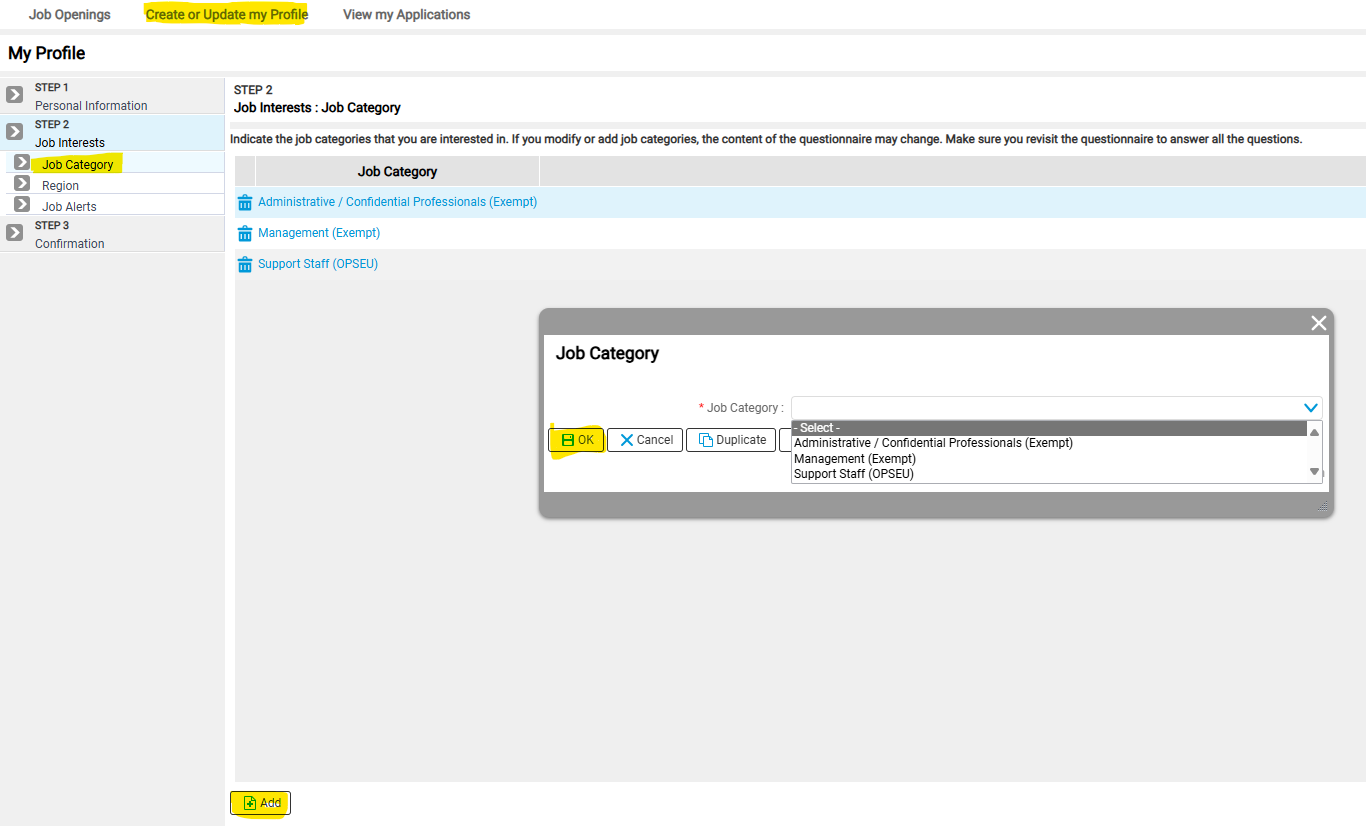
- OPTIONAL - Narrow down the Job Alerts you will receive by selecting specific criteria in the 'Region' section.
Can I withdraw my application?
Yes, you can withdraw your application from consideration prior to the job posting closing date by following the below steps. If you wish to withdraw your application after the closing date, please contact humanresources@trentu.ca.
- Navigate to the External Recruitment Site
- Login and select "My Applications".
- Select the requisition number for the job competition you wish to withdraw from.
- Select "Withdraw my Application".
How do I accept a job offer?
How do I accept an offer of employment?
If you are the successful candidate for position, the hiring manager will call you to make a verbal offer. Shortly after accepting the verbal offer, you will receive an email with your appointment letter. Review the letter and if you have any questions regarding the letter, please reach out to the Hiring Manager or Human Resources. To accept the offer, follow the instructions outlined in your appointment letter (ie. sign and return the offer, tax forms, banking information, ect. to Human Resources).