

NEW - Effective January 8, 2024, Trent University will utilize the new Training Module in the HRIS, VIP to track all employee and non-employee training. VIP will not be used to track student training completion, with the exception of students who are also employees (i.e. paid through Trent).
The following training guides are for Managers, Supervisors or Chair's who have employees directly reporting to them in VIP. If you are a manager and do not have access to a Manager Portal in VIP to view your employees, please email humanresources@trentu.ca.
- How to Approve a Training Request
- How to Register Your Employee for a Training Course
- How to View Your Employees Upcoming Training Courses
- How to View Your Employees Required Training that is Missing
- FAQ's - Managers
How to Approve a Training Request
-
Navigate to VIP through your MyTrent Staff Account.
-
Go to your "Manager Portal" and under "Approval Alerts", select "Training Requests". Note - You can click on the 3 lines at the top to open the menu and view the names of your portals.

- Click "Approve" or "Refuse" on the individual course, or at the bottom right you can "Approve All" or Refuse All".

- Once you select the names, you must click on "Confirm" to approve or refuse:

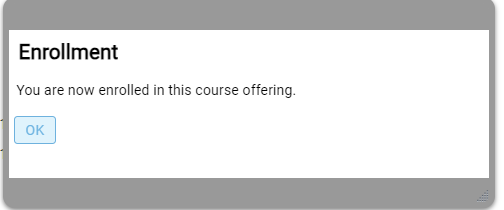
- Confirmation will be displayed, and your employee will be emailed a notification that you have approved them to take the course:
How to Register Your Employee for a Training Course
-
Navigate to VIP through your MyTrent Staff Account
-
Go to your "Manager Portal" and select "Staff". Select the employee you want to register to into a course. Click on "Training" then "Course Enrollment Status"

- Click on "Add":
- Select the magnifying glass to view the active courses:
- You can search by name or scroll and find the course you are looking for. Click on the course you want to enroll your employee into:
- Enter the following details:
"Enrollment Priority" = Required
"Training Activity Type" = legislated (required to be complete in accordance with an external legislation/act), job related (required to perform their job at Trent but is not in accordance with an external legislation/act) or personal interest.
Note - there is no wrong selection and the type is used only for internal purposes to identify the reason for employees to take a course.

Click "Save":
- Once the record is saved, you will see your employee has been registered. You can click add if you wish to add more courses or click back to return to the employee's Course Enrollment Status.
How to View Your Employees Upcoming Training Courses
- Navigate to VIP through your MyTrent Staff Account
- Go to your "Manager Portal", select "Staff" and then "Training". Select the employee's training record you want to review.
Note - Course Enrollment Status is all the upcoming courses your employee has been registered into. Course History is all the courses they have completed.
How to View Your Employees Required Training that is Missing
- Navigate to VIP through your MyTrent Staff Account.
- Go to your "Manager Portal" and select "Workbench".
- Scroll down to "Employee Training Gap Review" and select the employee whose training record you want to review.

- Select "Current Job" to view the courses your employee has completed (check mark) and the courses that are outstanding (exclamation mark).
Note - you can also view completion dates of courses and if your employee is registered for courses.

View missing training by individual by clicking on "Staff" and selecting "Training":
Note - Course Enrollment Status is all the upcoming courses your employee has been registered into. Course History is all the courses they have completed.
FAQ's - Managers
Why does my training history show I completed the Worker - Health & Safety Awareness training when I completed the Supervisor - Health & Safety Awareness?
Supervisors are exempted from taking the Worker training and only require the Supervisor - Health & Safety Awareness training course. Human Resources has exempted supervisors from the worker course and therefore VIP will show the date the supervisor was exempted by HR as their "passed" date. This also shows in the course history for record keeping purposes.
I am an instructor who teaches students but I do not oversee the work of any paid graduate students, marker/graders, teaching assistants, volunteers, administrative staff, or other University employees. Do I have to complete the Supervisor H&S Awareness Training?
Teaching duties alone do not attract supervisory status under the OHSA. A faculty member teaching in a classroom, for example, may have charge of students who are in a workplace, but the faculty member’s teaching duties alone would not give him or her charge of a workplace in respect of any workers. You would not need to complete the supervisor training. Please email HR to remove the training from your VIP training module.
Why do I not see any Training Requests by my employees but they have signed up for a training course?
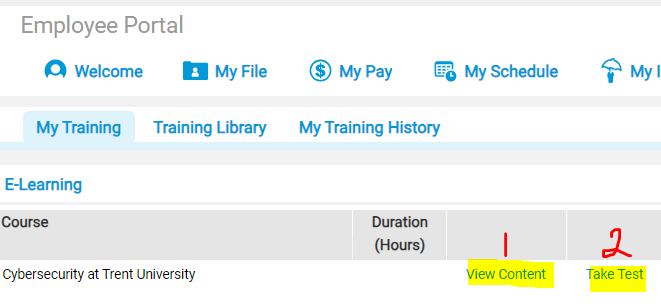
Training requests only require approval if they are synchronous training courses (i.e. held at a specific date and time, either in-person or virtual). If your employee has signed up for an asynchronous course (i.e. E-learning), they can complete the course at anytime without a specific date/time, and therefore there is no approval required by their manager.