

This page will outline all currently rolled out functions under the Manager Portal Files.
About Files:

Files is a VIP Function that allows Managers to view reports regarding their employees. Below are descriptions of the various reports that we want Managers to get comfortable using.
Quick Tips:
Most screens in VIP Manager Files have a search function by clicking on the magnifying glass to narrow down your search should multiple results appear:

You may also be able to Filter your results by using the filter button:

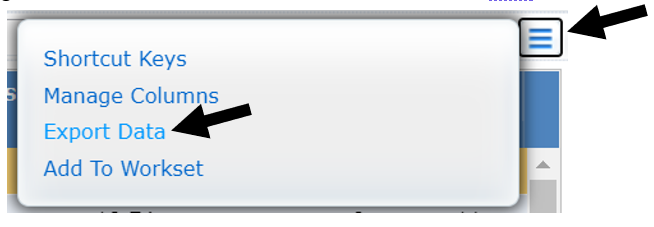
You may also be able to export data by click on the 3 lines button, which we call the “Hamburger” button, and choose to view the data in Excel, PDF, or another format.
Quick Glance Sections:
Attendance Profile: View any single employee's attendance profile for the entire calendar year.
Entitlement Banks: View employees’ entitlement bank balances (vacation, overtime, etc.), in one concise report.
Position History: View previous positions your employees have held, as well as the start dates and end dates.
Employment Status: View employees status to determine if they are Active, inactive, or on a leave etc.
Seniority: Summary of the OPSEU union seniority for your employees.
Credited Service: View employees’ continuous services dates (i.e. no break in employment) and recognized service dates (i.e. based on ESA or Collective Agreements and is used for calculating vacation accruals).
Salary History: View the history of all your employees’ job titles and salary progression.
Premium and Allowance: Summary of all your employees' current premiums, allowances, stipends, etc. that have been processed
Demographics: View employee’s personal information such as the employee’s employee number, address, or emergency contact.
Service Anniversary Report: View all your employees' anniversary dates according to the month of the year.
Employee Profile Report:Summary of the employee profile, including employment status, position details, and salary details.
Employee History Summary: Summary of the employee profile, including employment status, position details, and salary details.
This report allows you to view any single employee's attendance profile for the entire calendar year.
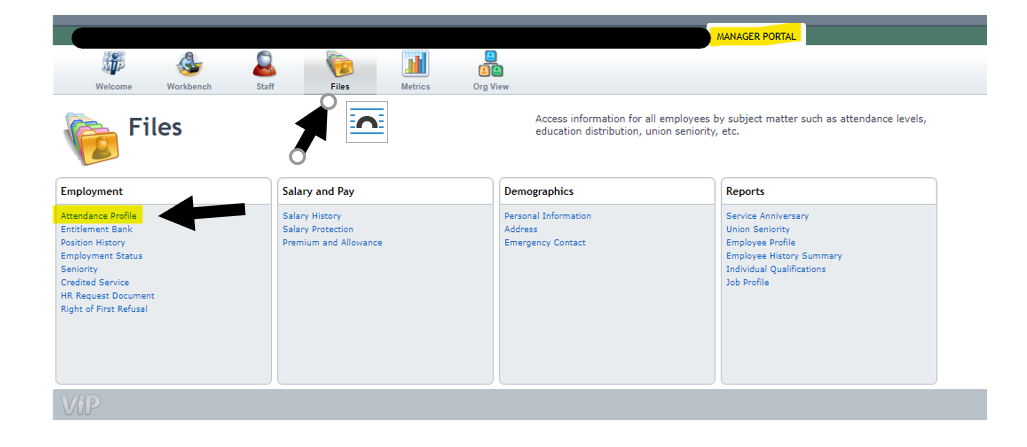
Step 1: Go to your Manager portal in VIP and select Files, and then Attendance profile.
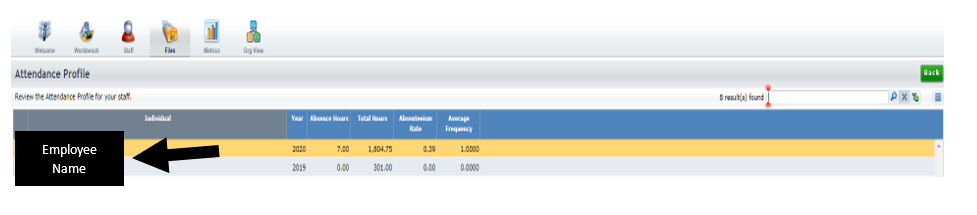
Step 2: Click on the employee name for the corresponding year to generate the profile you want to view
Step 3: View profile by clicking on a specific date it will pull up a window and provide you with the information for that day.
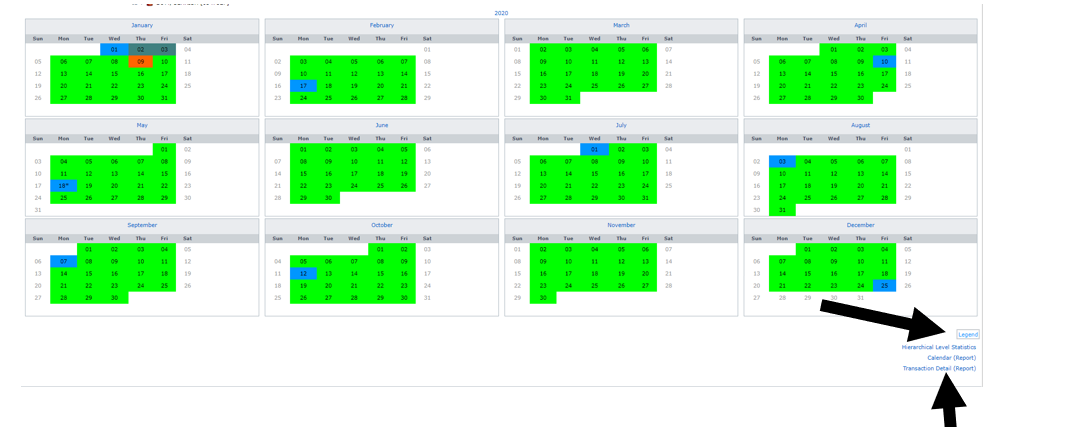
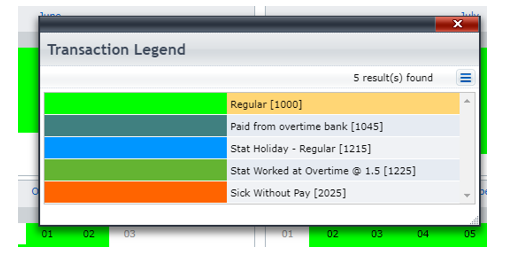
Step 4: View the legend to understand what each color means.
Step 5: You may wish to view the Transaction Detail (Report) as well, which will pull a month-by-month report for the specific employee detailing the total hours and $ amount for each Transaction code used in each month.
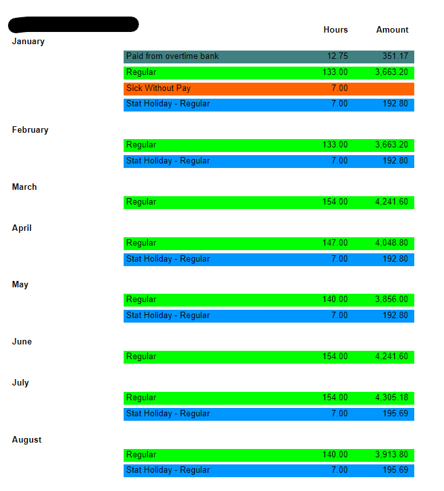
Note: Stat holidays will not show for employees that do not have a schedule pre-populated (i.e. students/markers, casual etc.)
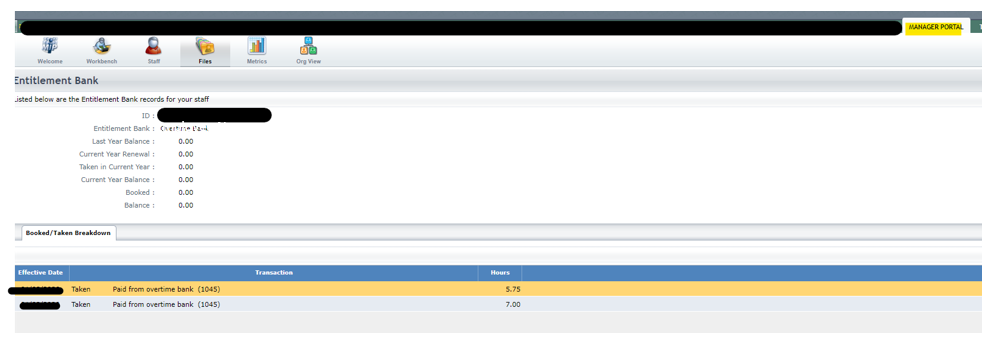
Managers can view their employees’ entitlement bank balances, such as vacation balances, overtime balances, etc., in one concise report.
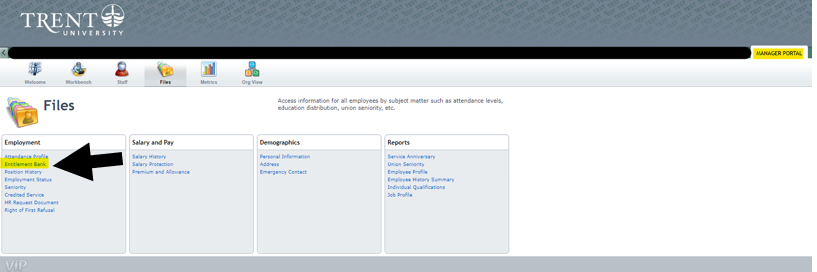
Step 1: Go to Manager Portal > Files, and click on entitlement banks:
Step 2: View information for all banks:
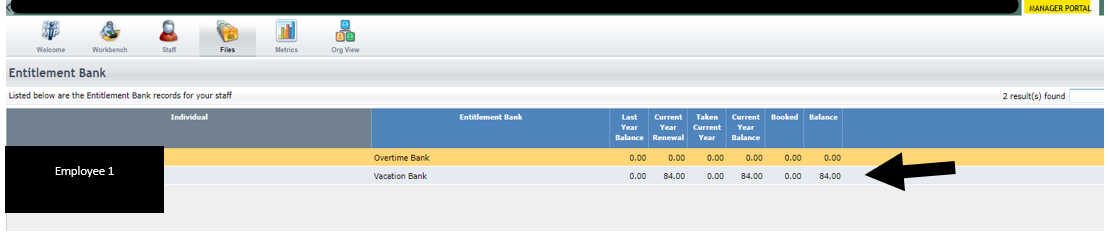
Step 3: If you click on the employees’ name (highlighted in blue), it will go further and show you days that the employee has booked/taken.
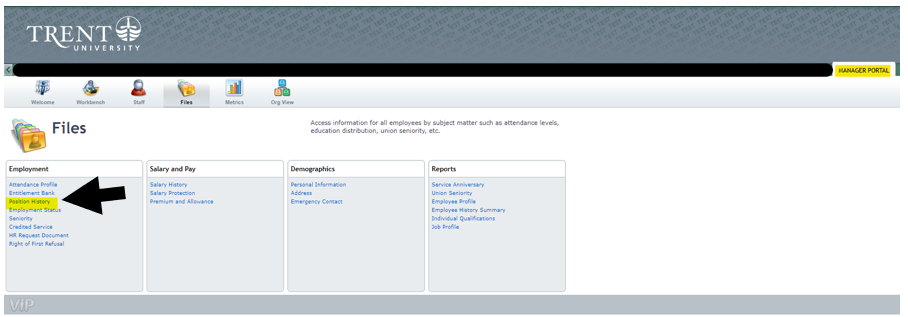
This section will show managers all the previous positions your employees have held, as well as the start dates and end dates.
Step 1: Go to the Manager Portal > Files, and click on Position History.
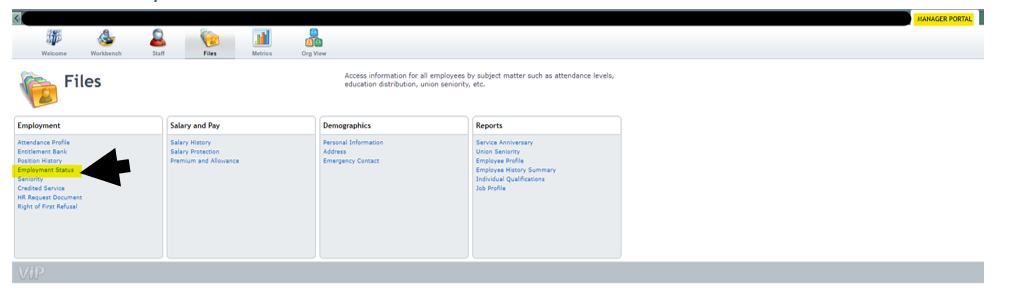
Quickly see the employment status of all your employees to determine if they are Active, inactive, or on a leave, etc.
Step 1: Go to the Manager Portal > Files, and click on Employment status
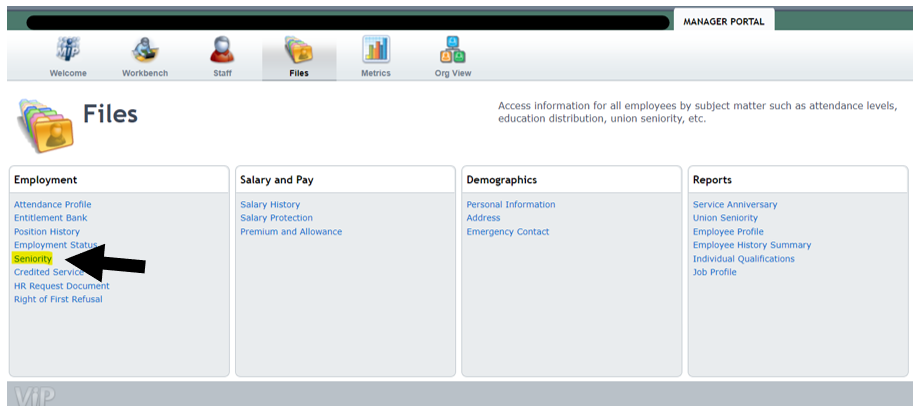
Quickly see a summary of the OPSEU union seniority for your employees.
Step 1: Go to the Manager Portal > Files, and click on Seniority.
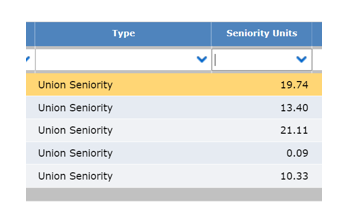
Step 2: View the seniority units, which are in years, as per the OPSEU collective agreement. Please note – we do not use the “Rank”.
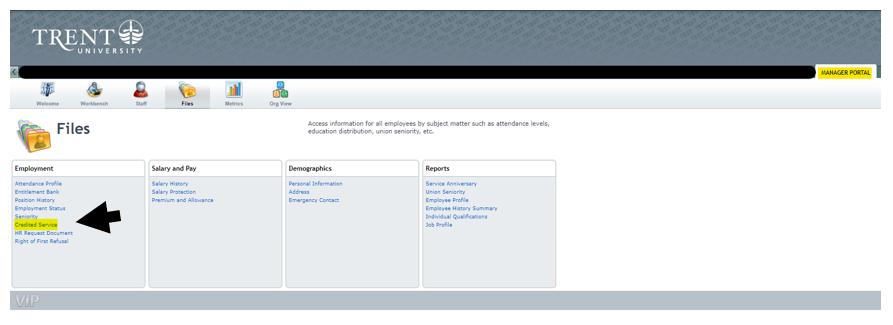
View a summary of all your employees’ continuous services dates (i.e. no break in employment) and recognized service dates (i.e. based on ESA or Collective Agreements and is used for calculating vacation accruals).
Step 1: Go to the Manager Portal > Files, and click on Credited Service.
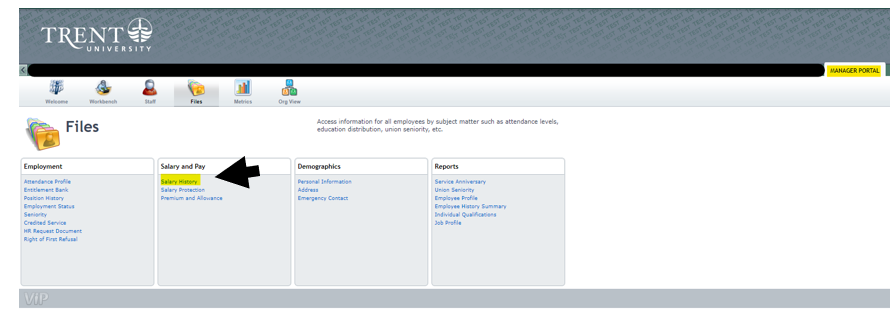
View the history of all your employees’ job titles and salary progression.
Step 1: Go to the Manager Portal > Files, and click on Salary History.
Step 2: Click on the Employees’ name (highlighted in blue), for more details on the change
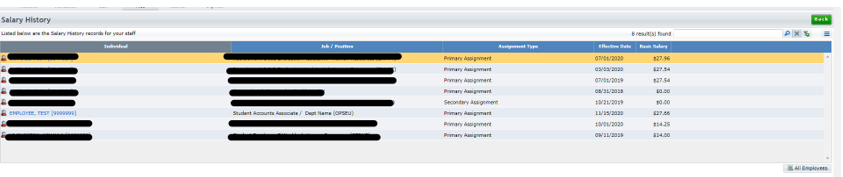
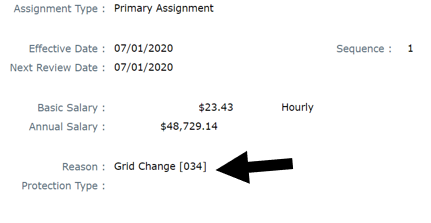
Step 3: View the reason for the change (i.e. merit, grid change, step increase, etc.).
Shows you a summary of all your employees' current premiums, allowances, stipends, etc. that have been processed. This section is used mainly for CUPE employees, as well as for employees with temporary upgrades.
All reports under the demographics category can be accessed to get the employee’s personal information such as the employee’s employee number (Personal Information), address, or emergency contact.
You can generate a report depending on parameters input that will show you all your employees' anniversary dates according to the month of the year.
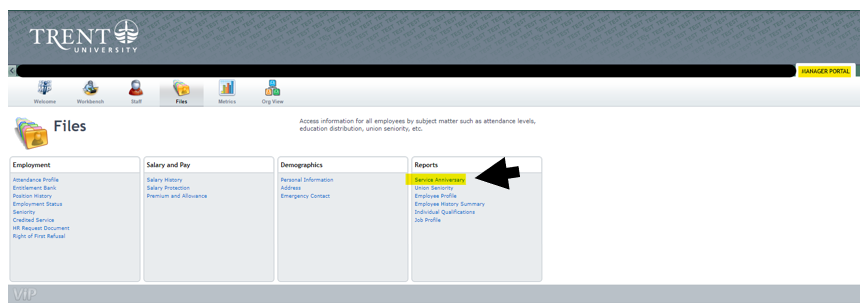
Step 1: Under the files section of the Manager portal, click on service anniversary under reports.
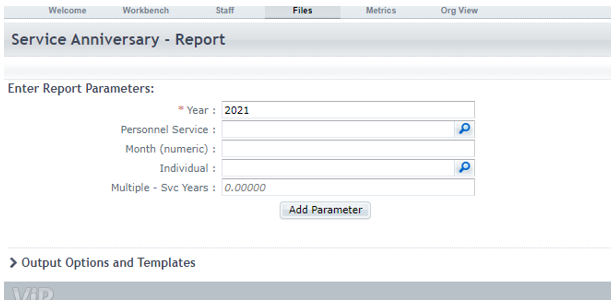
Step 2: Input parameters, in this example we have input the year parameter and run report (bottom right of screen)
Step 3: View and or export report
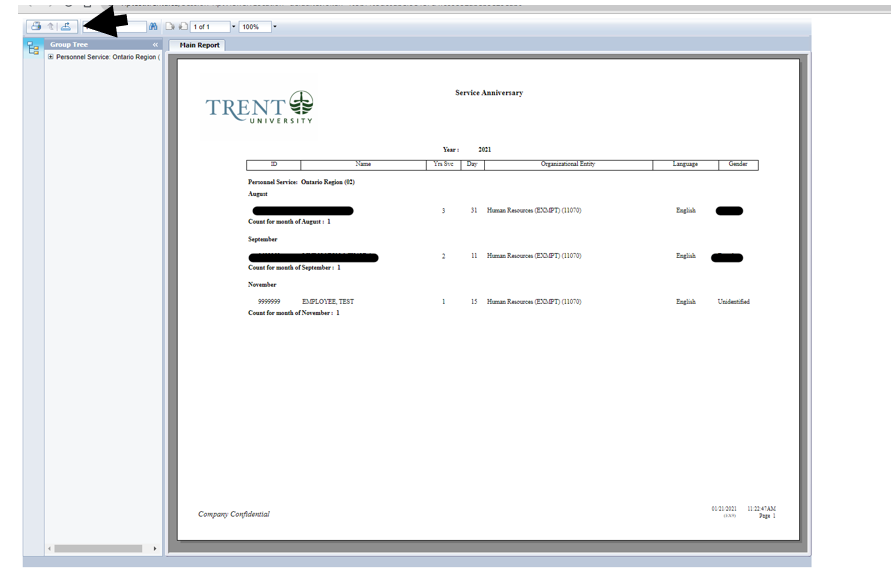
To export report click on the arrow facing the right in the top left corner 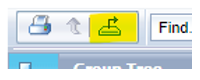 , select report type, and download.
The employee profile report provides you a summary of the employee profile, including employment status, position details, and salary details.
Step 1: Under the files section of the Manager portal, click on Employee Profile under reports
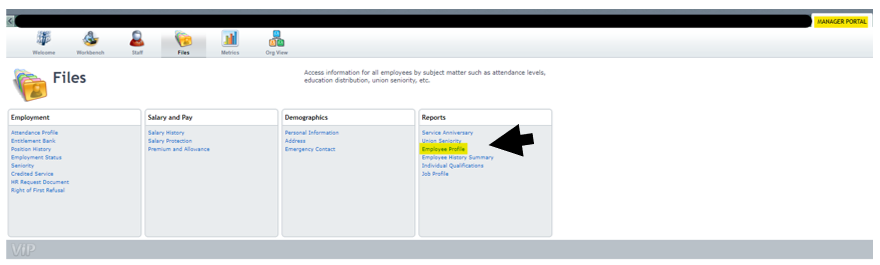
Step 2: Add parameter (select employee by clicking on the magnifying glass)
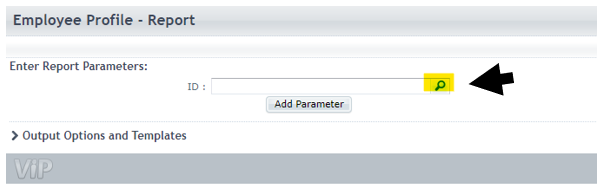
Step 3: Run report (bottom right of screen), view, and export.
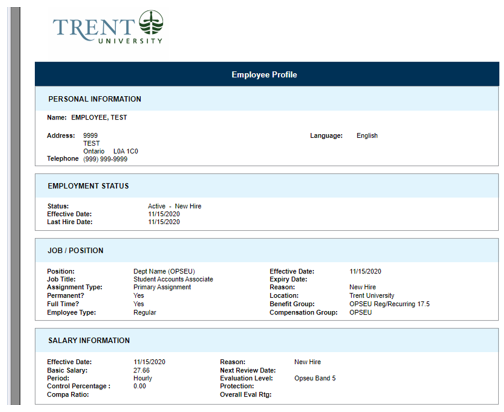
To export report, click on the arrow facing the right in the top left corner , select report type, and download.
Provides an exportable report of the selected employees’ employment history at the university.
Step 1: under the files section of the Manager portal, click on Employee History Summary under reports.
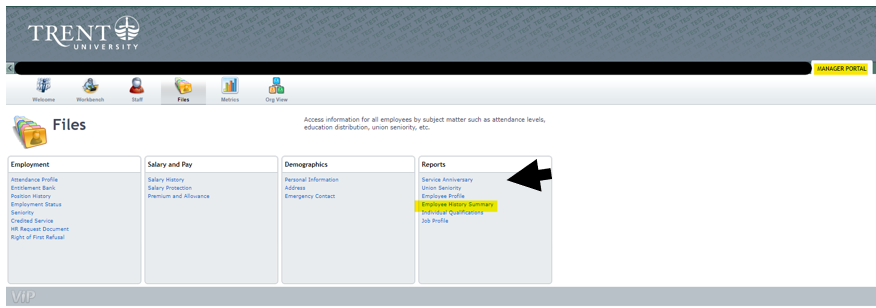
Step 2: add a parameter (select employee by clicking on the magnifying glass)
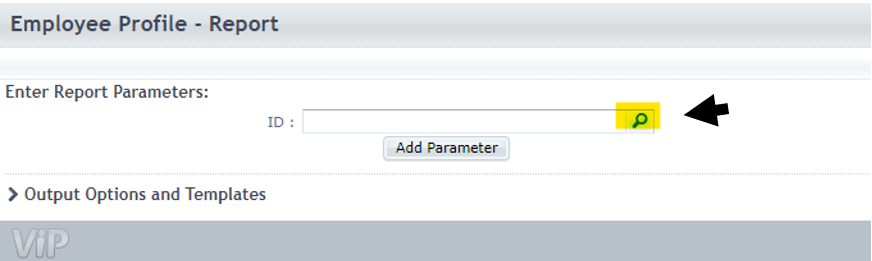
Step 3: Run report (bottom right of screen), view, and export.