
Siteimprove is a tool for site editors and site owners to check the quality and the accessibility of their site. One recurring theme of Siteimprove is that Siteimprove usually flagged more issues than there actually is, so you need to review the issue for possible false positive. This is a brief guide to show what you can do using Siteimprove. Once you have been granted access, you will need to login for the first time through the email invitation. For subsequent logins, you can login directly from the Siteimprove website. Please remember that Siteimprove check the site once every 5 days, so the issues would still be in Siteimprove after the fixes have been applied
Drupal Integration
Siteimprove is integrated with Drupal, so if you are already logged in, you can simply click the pencil icon,  , at the top ribbon, and it will bring you to the edit page of the page that has the issue.
Quality Assurance
There are 2 main aspects in Quality Assurance: Links and Spelling.
Links
"Links" refers to broken links. This aspect is all about broken links that are within the page content and within PDFs of your website. The 2 most common type of errors that lead to broken links are Error 404 and Error 403. 404 is when the link leads to a page that does not exist anymore, the link could be a Trent link or an external. If it is a Trent 404 link, this is what a visitor sees:
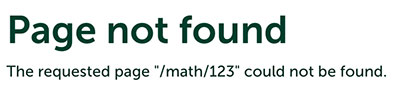
There are 3 ways you can fix a 404 link: 1) Find the right link and replace the old, broken link. 2) Unlink the text. Or 3) delete the text with the link.
403 is when the link leads to a Trent page that is unpublished. This is what a visitor sees when visiting a 403 link.
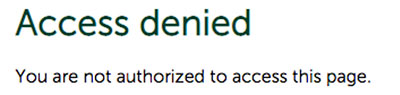
To fix this issue, method 2 and 3 from above works. Also, you can simply publish the 403 page, or if you have no control over the 403 page, contact the site owner and ask about it.
Note that Siteimprove has an issue where it flags every Google Scholar link and every Researchgate link as broken, you will need to go through each of them manually and approve it if it is a false positive.
Spelling
There are 3 panels within the Spelling section: "Misspellings", that is for misspelling words; "Needs Review", that is for words that Siteimprove cannot be sure whether or not it is misspell; "Approved words", that is for words that were previously approved and won't be flagged in the future.
This is the screenshot of one of the item in the "Misspellings":
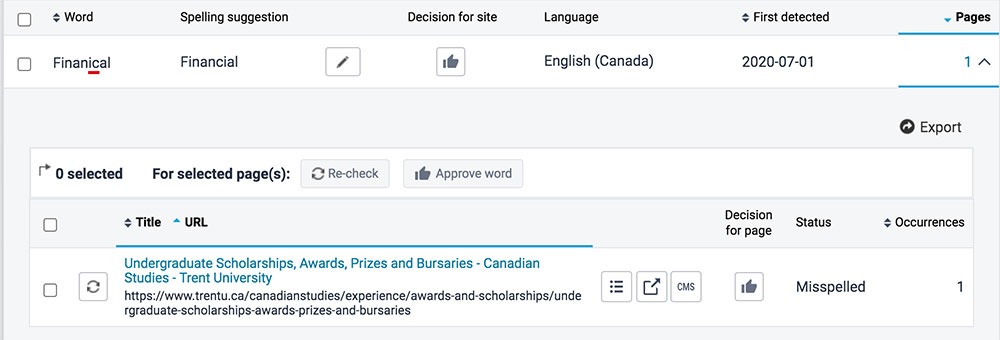
If the flagged word is not actually misspelt, you can click the "thumb's up" icon, that would approve the word for the whole site and move the word to the "Approved Words" panel. Click the number under "Pages" and you can see where the misspelling is, and you can click the "CMS" logo to go straight to the edit page if you are already logged in to Drupal.
This is the screenshot of one of the item in the "Needs Review":
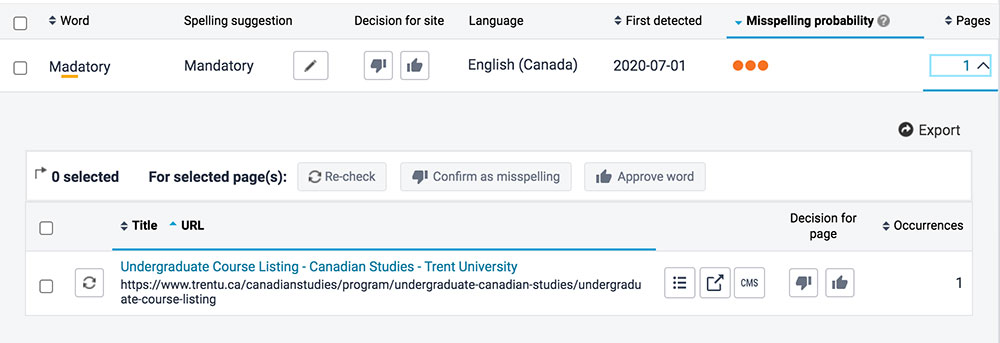
The "thumb's up" and the "CMS" icon does the same thing as above. The "thumb's down" icon confirms the word as misspelling and would move the word to the "Misspellings" panel.
Others
Readability
In this section, pages are categorized according to the difficulty level of the content. This doesn't have much effect on quality assurance and can be left alone.
Inventory
This is where you can all of the assets (eg: images, audios, videos, etc) and many other info (eg: link text, CSS, site map, etc.) about your site.
Accessibility
There are 2 main aspects in Accessibility: "Issues" and "PDFs"
Issues
"Issues" refers accessibility issues are divided into A, AA, or AAA issues. For this guide, only A issues will be covered since most if not all AA and AAA issues cannot be fixed by site editor.
"u" tag used to format text
This means there are underlined text in the page. To fix it, just remove the underline. Note that bold and italics are accessible but underline is not since screenreader would treat underlined text as an url and would read out the text letter by letter.
Image link is missing alternative text
This one is quite self-explantory, just add the alternative text and the issue will go away.
Adjecent links used for same destination
This issue occurs when two indivdual links are side by side with no visible text separating them, yet the two links lead to the same destination. To fix this, combine both link texts into one.
Please click the links below for details on how to fix different these more complicated A issues:
- Link text used for multiple different destinations
- Heading is missing text
- Local link destination does not exist
The "HTML is used to format content" is an issue that has to be fixed from our side, so you can leave it alone.